

Meta editor and versions
The Meta editor lets you edit a vehicle’s .meta files (vehicles, carvariations, carcols, layouts and others) without leaving the studio. Each save is kept as a version in the project, so you choose when it goes into the real file and can go back to an older one.
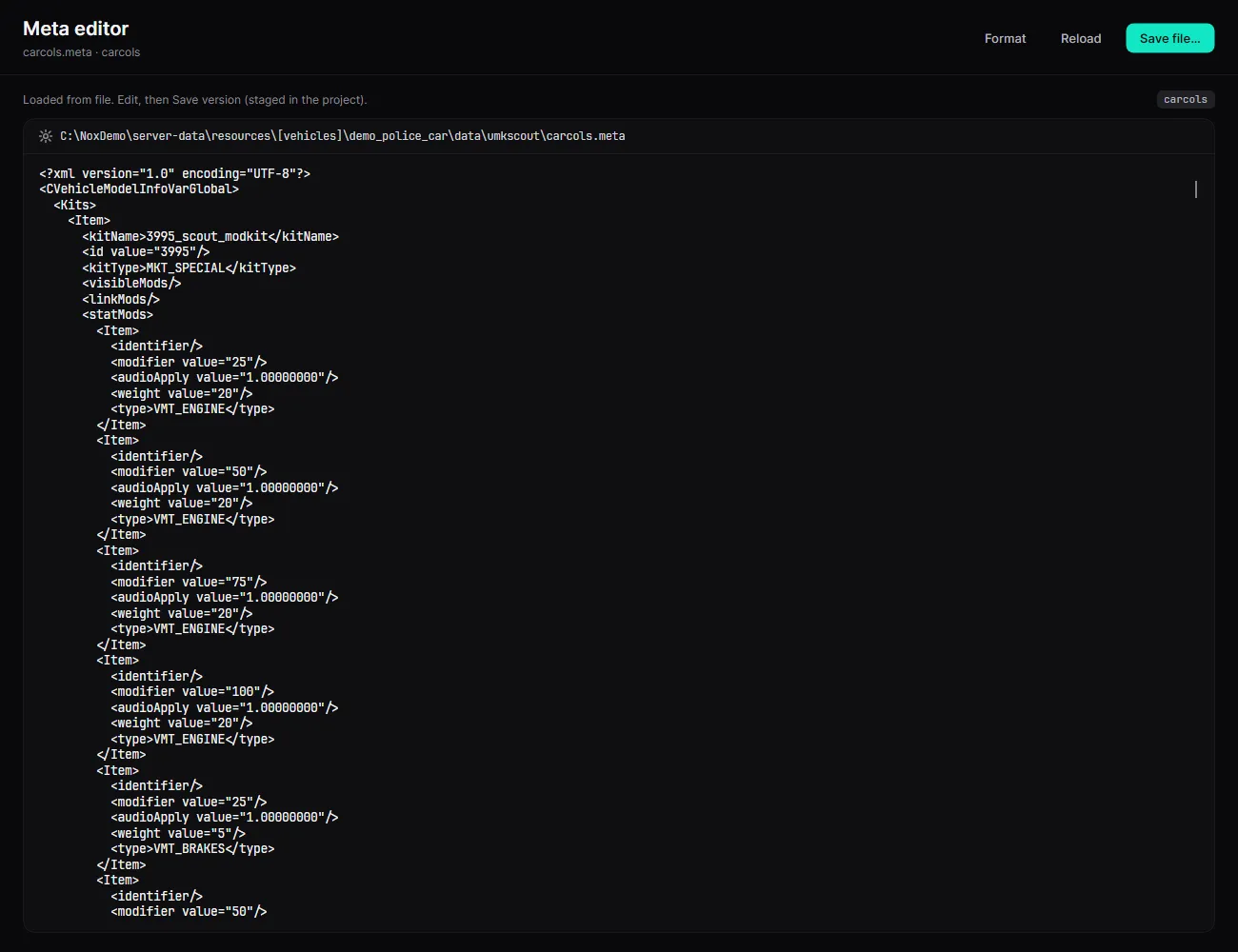
Open a meta file
Section titled “Open a meta file”Click a .meta file in the Explorer on the left (or right-click it and choose Open). It opens in the Meta editor. The header shows the file and its kind: vehicles, carvariations, carcols, layouts or meta.
Handling files are the exception: a .meta with “handling” in its name opens in Handling instead.
If the file already has a staged version, the editor shows that version, not the file on disk: Loaded the latest staged version (14:02:31). Edit and Save to stage a new one.
Edit and save a version
Section titled “Edit and save a version”- Edit the XML.
- Click Format to tidy the indentation. If the XML is broken, it says where: Can’t format — invalid XML: …
- Click Save version. The change is staged in the project: Staged version 14:02:31 → apply it from the project’s Overview. The file on disk does not change yet.
Reload reads the file from disk again and throws away your edits.
Apply a version
Section titled “Apply a version”Every Save version in the Meta editor or in Handling adds a version to the project.
-
Open Overview.
-
Under VERSION HISTORY, each version shows its name, the kind of file, when it was saved, and staged (saved, not in the file yet) or applied (this is what is in the file now).
-
Click Apply on the version you want.
-
Read what will happen and click Apply to confirm.
A meta version replaces the whole file: This replaces the whole of carvariations.meta with the staged version. A handling version only changes its own car (see Handling).
Edit on a version opens it again in the Meta editor or Handling.
Roll back
Section titled “Roll back”- To go back to an earlier version, click Apply on that version.
- Each apply is also a step in History (filter Meta files), so you can undo it there.
- Before the studio changes a file for the first time, it keeps the original as
<file>.noxbak. Tools → Advanced → Restore originals (undo every in-place rewrite) puts back every original the studio has kept.
Without a project
Section titled “Without a project”With no project open, the button reads Save file… and saves the XML to a file you pick. If that overwrites a file, the old one is kept as .noxbak first; if that copy cannot be made, nothing is saved.
Good to know
Section titled “Good to know”- The game reads meta files when the resource starts. Restart the resource (or the server) after you apply.
- Versions are stored with the project, in
%AppData%\Noxsware\Projects\<project>\history\.
Next: Build a vehicle resource.