

Clothing catalogue
The Clothing catalogue is a web page that lists every piece on your server with a picture, its pack, its slot and the number to pick in the clothing menu. Staff and players can search and filter it in any browser, even offline.
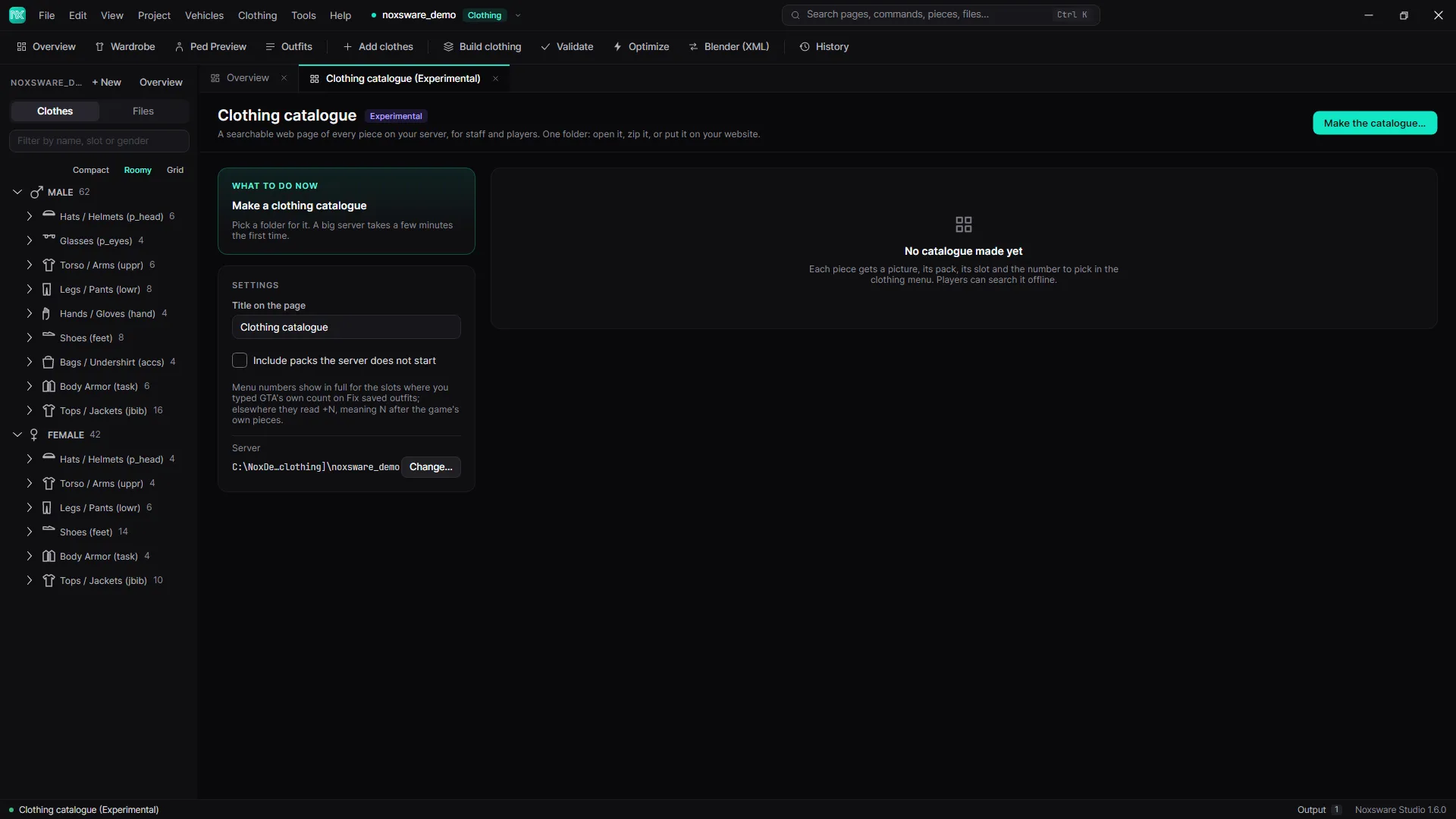
Make the catalogue
Section titled “Make the catalogue”- Open Tools → Server tools (Experimental) → Clothing catalogue (Experimental). With no project open, click Pick folder… and pick your server’s resources folder.
- Under Settings, type the Title on the page. Tick Include packs the server does not start if you want those too.
- Click Make the catalogue… and pick an empty folder for it. To update a catalogue you made before, pick its folder.
- Wait while each piece is drawn with its first colour. A big server takes a few minutes the first time.
When it’s done, the card shows how many pieces are in it, how many pictures were drawn and how many were kept from last time. Click Open the catalogue to check it in your browser, or Show the folder to find it.
Share it
Section titled “Share it”The catalogue is one folder: an index.html page and a folder of pictures. The page carries its own data and search, so it needs no server and no internet. Zip the folder and send it, or put it on your website.
Update it
Section titled “Update it”Click Export again… and pick the same folder. Only pieces whose files changed since last time are drawn again, so updates are quick.
Menu numbers in the catalogue
Section titled “Menu numbers in the catalogue”Each piece shows the number players pick in the clothing menu: GTA’s own count for that slot, plus the pieces of packs that start earlier, plus the piece’s number in its pack.
- For slots where you typed GTA’s own count on Fix saved outfits, the number shows in full.
- Elsewhere it reads +N, meaning N after the game’s own pieces.
- Packs the server doesn’t start have no menu number.
Good to know
Section titled “Good to know”- Pieces marked Hidden from shops in their shop details are left out. Shop labels and prices you set show in the catalogue. See Shop details and store media.
- Pieces that can’t be drawn (escrow-protected or unreadable) are counted under Could not be drawn.
- To change the server, click Change… under Settings.
Next: In-game Inspector shows the same pieces inside the game.