

Blender (XML)
Blender (XML) converts game files to the XML format that Blender with the Sollumz add-on and CodeWalker open, and converts that XML back into game files. Use it when you want to edit a model in Blender, or open a file in CodeWalker, and bring the result back.
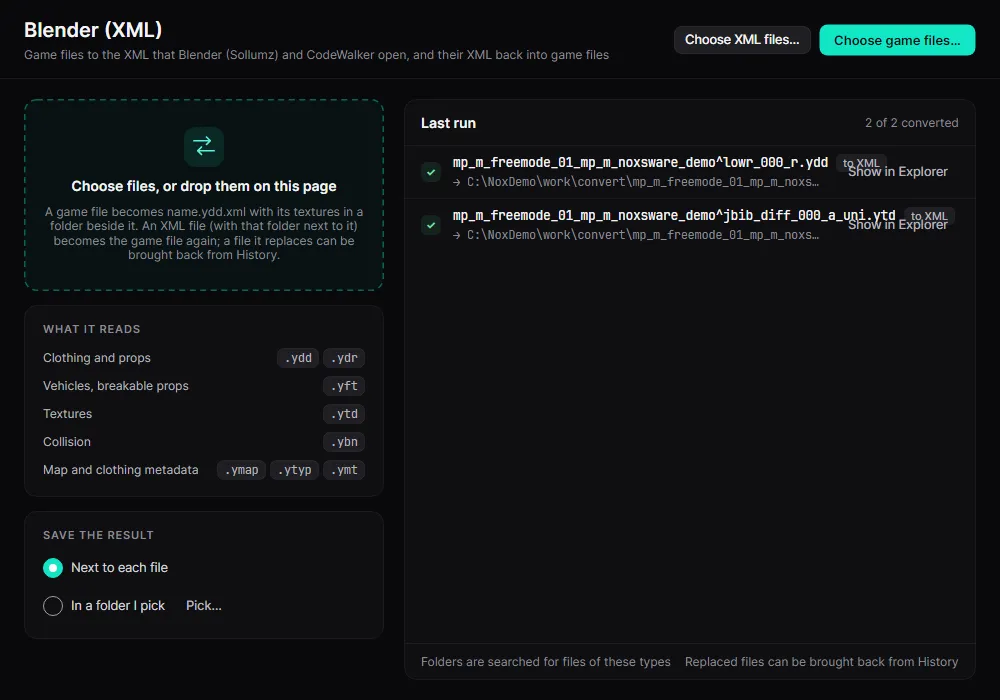
The converter works on the free plan.
Convert files
Section titled “Convert files”- Open Blender (XML) from the toolbar, or Tools → Blender (XML).
- Under SAVE THE RESULT, pick Next to each file or In a folder I pick.
- Click Choose game files… to make XML, or Choose XML files… to make game files. You can also drop files or folders on the page; folders are searched for files of these types.
- Read Last run. Each file shows a tick and where the result went, with to XML or to game file. Files that couldn’t be converted show why.
What it reads
Section titled “What it reads”| Kind | Game files |
|---|---|
| Clothing and props | .ydd, .ydr |
| Vehicles, breakable props | .yft |
| Textures | .ytd |
| Collision | .ybn |
| Map and clothing metadata | .ymap, .ytyp, .ymt |
Each one converts both ways: .ydd to .ydd.xml and back, and so on.
How the files are named
Section titled “How the files are named”- A game file becomes
name.ydd.xml(or.ydr.xml,.ytd.xml…), with its textures in a folder beside it. - An XML file, with that texture folder next to it, becomes the game file again.
Keep the XML and its texture folder together when you move them. Sollumz and CodeWalker read and write this same layout.
Bring a file back
Section titled “Bring a file back”When a conversion writes over a game file that is already there, the old one is kept in History. Undo that step to bring it back.
Good to know
Section titled “Good to know”- To edit a clothing piece in Blender without converting by hand, right-click it and use Edit in Blender…. See Model Studio and Blender.
- Add clothes also takes
.ydd.xmlfiles directly. See Add clothes.
Next: History and undo.