Clients, admins and roles
Clients
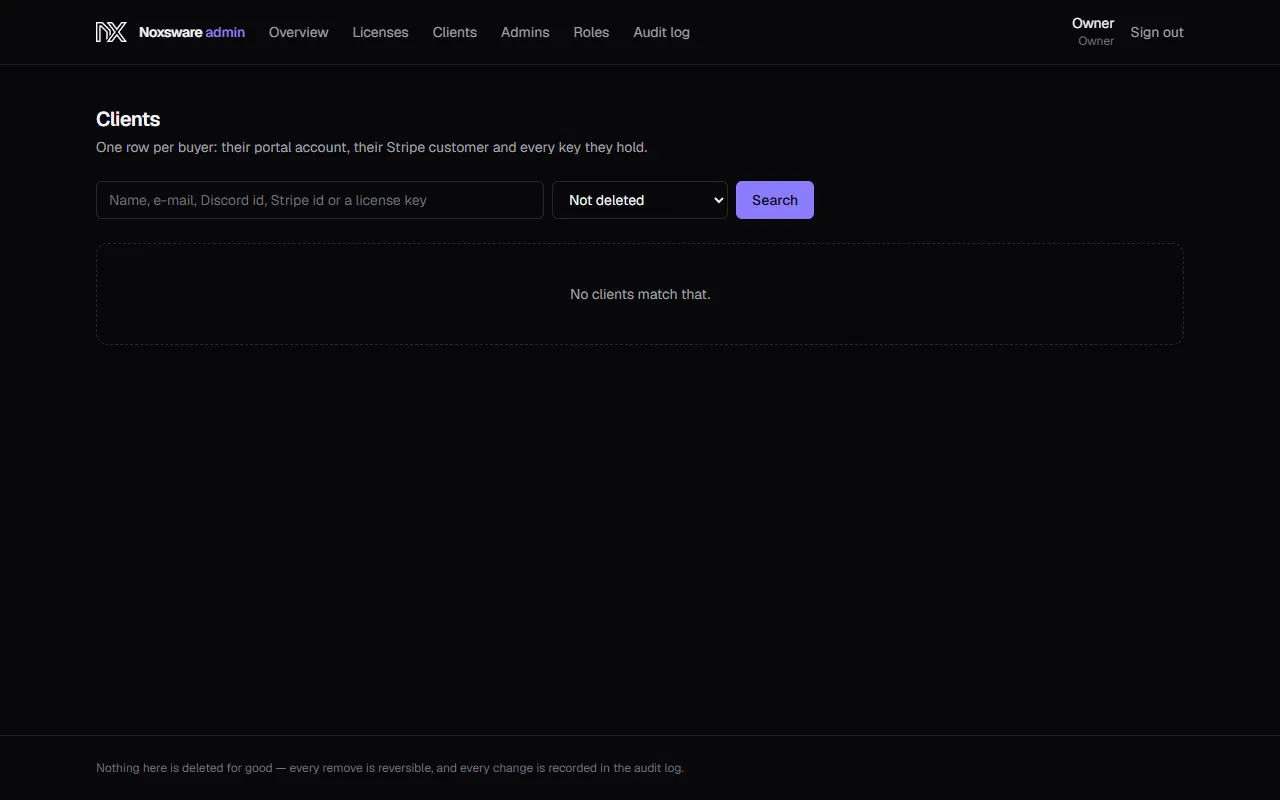
Section titled “Clients”Clients has one row per buyer: their client-portal (Discord) account, their Stripe customer, and every key they hold. Search by name, e-mail, Discord ID, Stripe ID or a license key.
A client’s page shows their details, their Licenses, their Stripe subscriptions, and:
- Open in Stripe: opens that client’s Stripe billing portal (needs the billing permission).
- Edit: name, e-mail, Discord ID, note → Save client.
- Delete client: a soft delete. The record is hidden, their licenses keep working, and Restore client undoes it.
Admins
Section titled “Admins”Admins lists who may sign in here and their role.
Add an admin
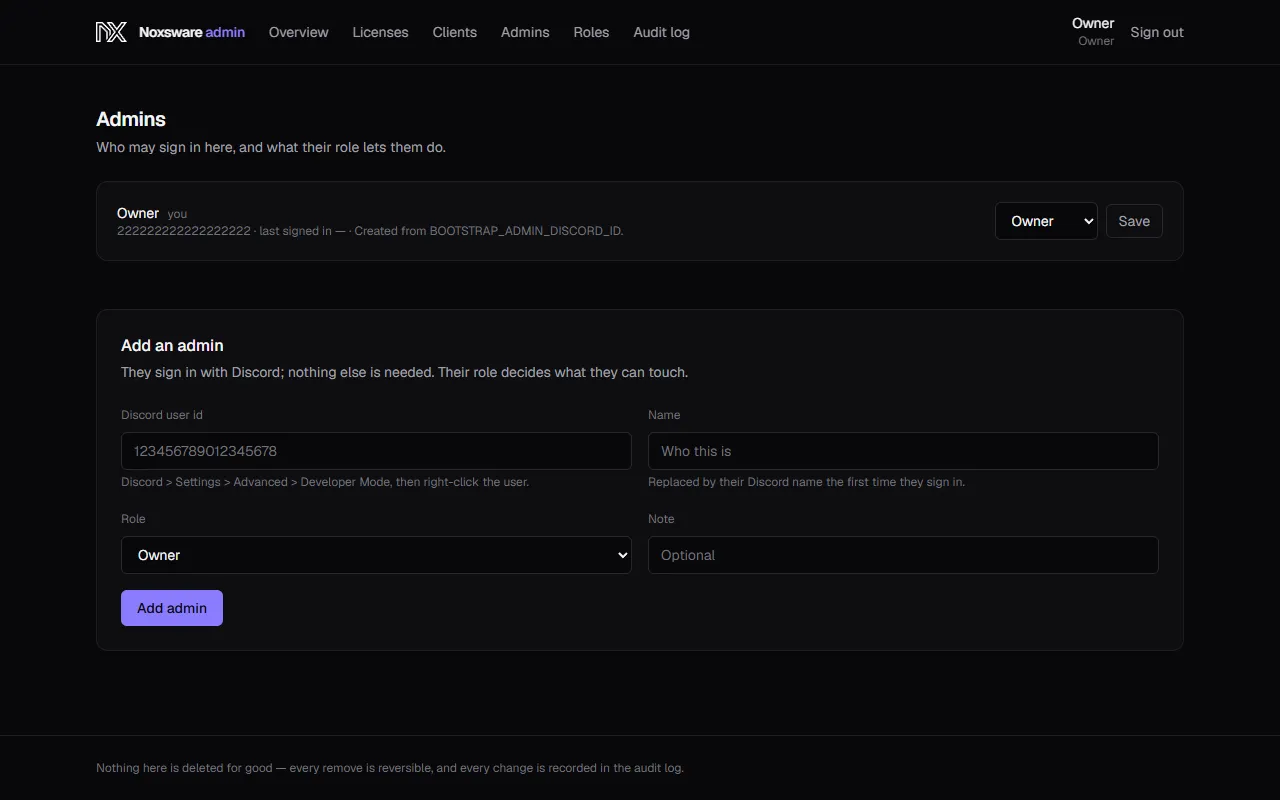
Section titled “Add an admin”- Under Add an admin, enter their Discord user id (Discord → Settings → Advanced → Developer Mode, then right-click the user → Copy User ID).
- Optionally a Name and Note.
- Pick a Role.
- Click Add admin.
They can sign in straight away with Discord; nothing else is needed.
Change someone’s role with the dropdown and Save. Remove takes them off the list (with a confirmation). Removed admins are listed under Removed with Restore.
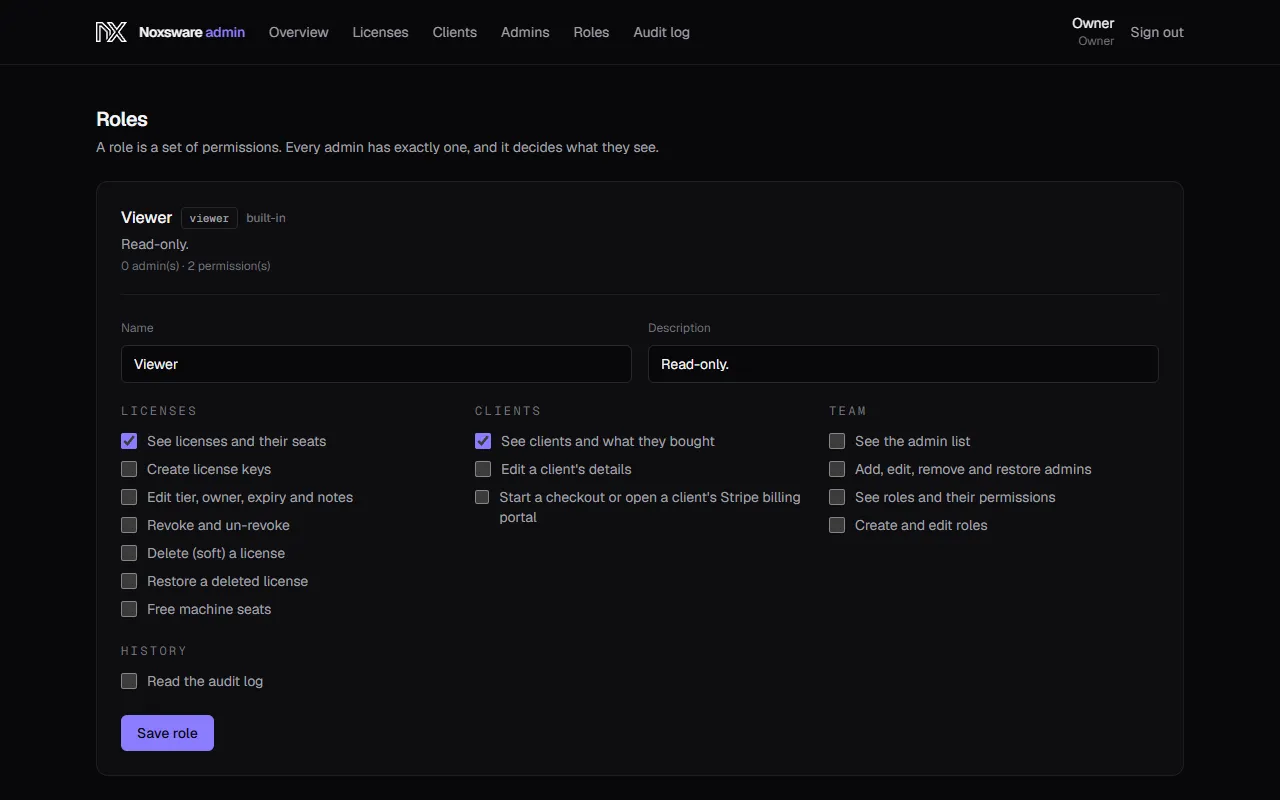
A role is a set of permissions. Every admin has exactly one.
| Built-in role | Can |
|---|---|
| Owner | Everything, including admins and roles. Always has every permission, so there’s always a way back in. |
| Manager | All of licensing, plus read the team, roles and audit log. |
| Support | See licenses, edit them, and free machine seats. |
| Viewer | See licenses. |
Tick permissions and Save role to change a role. New role → Create role makes a custom one (for example Billing). Custom roles can be deleted; built-in ones can’t.
Audit log
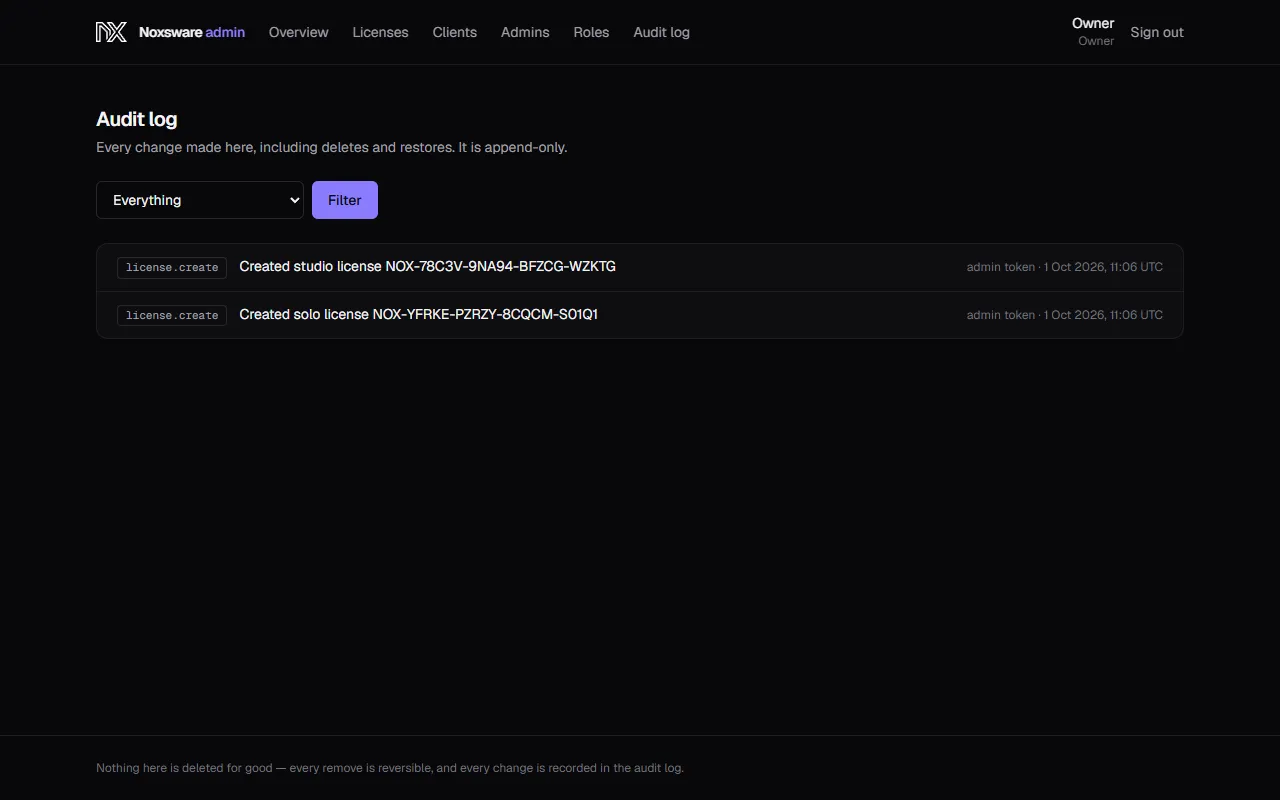
Section titled “Audit log”Audit log lists every change made in the admin portal, including deletes and restores, newest first. Filter by Licenses, Seats, Admins or Roles. Older pages back. It is append-only: nothing in it can be edited or removed.