

Library and Git
The Library is a shelf for packs and files you come back to, with one-click buttons to optimize or build them. The Git page keeps versions of your project’s folder with Git, so you can always go back to an earlier state.
Use the Library
Section titled “Use the Library”Open it from Project → Library.
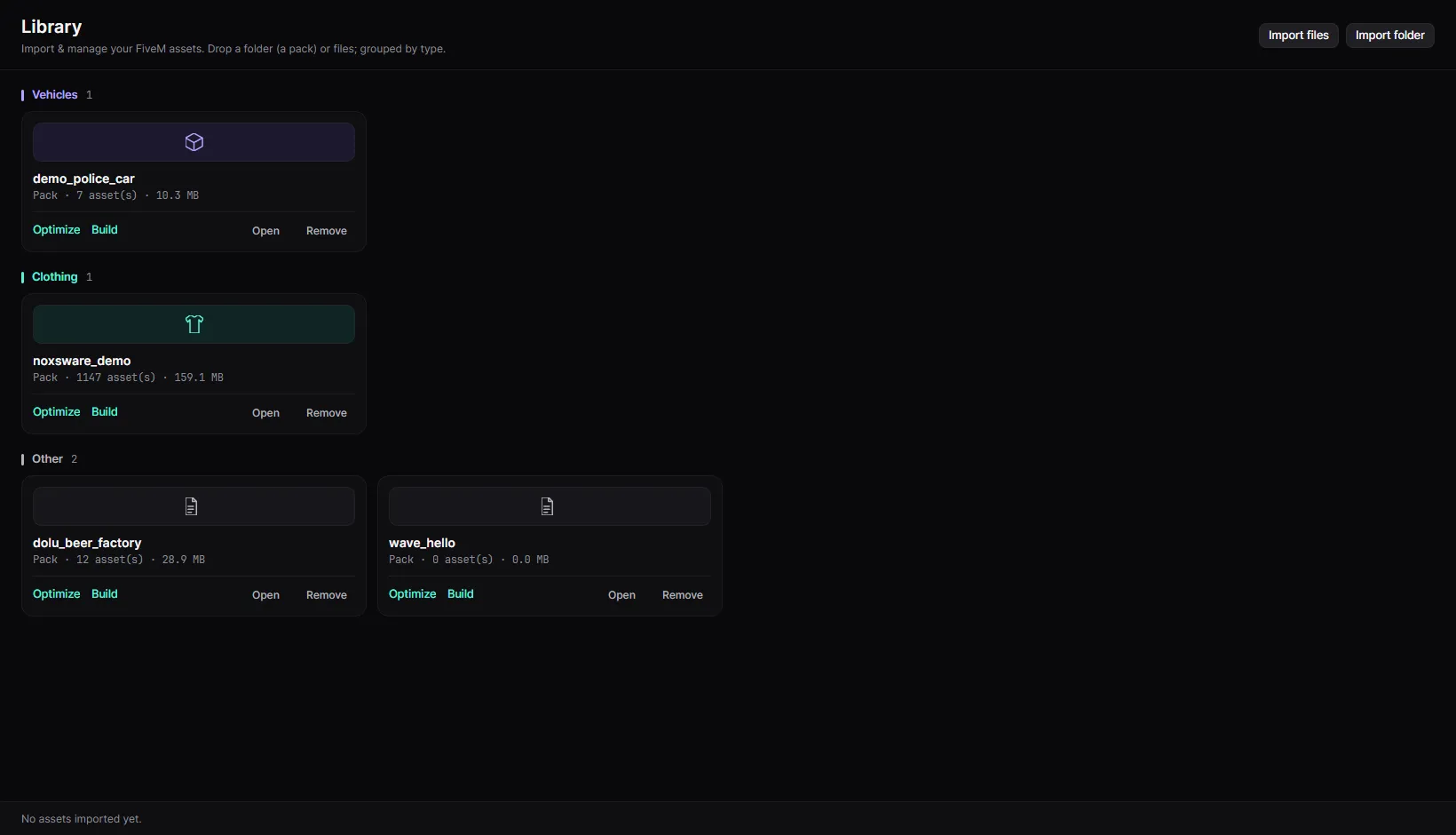
- Import files adds single files (
.ytd,.ydr,.ydd,.yft). Import folder adds a pack. You can also drop them on the page. - Items are grouped by type: Clothing, Vehicles, MLO / Map and Other.
- Each card says whether it is a Pack or a Single asset, how many files it holds and its size.
Each card has four buttons:
| Button | What it does |
|---|---|
| Optimize | Opens it on Optimize. |
| Build | Opens it on Build, to package it as a resource. |
| Open | Opens its folder in Windows. |
| Remove | Takes it off the list. No files are deleted. |
The Library is remembered between sessions. To empty it, use Clear library in Settings. It clears the list at once, without asking.
Use Git
Section titled “Use Git”Git keeps a history of your project’s folder, separate from the studio’s own History. It is useful before big imports, optimizing in place, or applying versions.
Open it from Project → Git.
What you need
Section titled “What you need”- An open project. Git tracks the project’s source folder.
- Git installed on your PC. If it isn’t, the page says Git not found: install Git from git-scm.com, then reopen the tab.
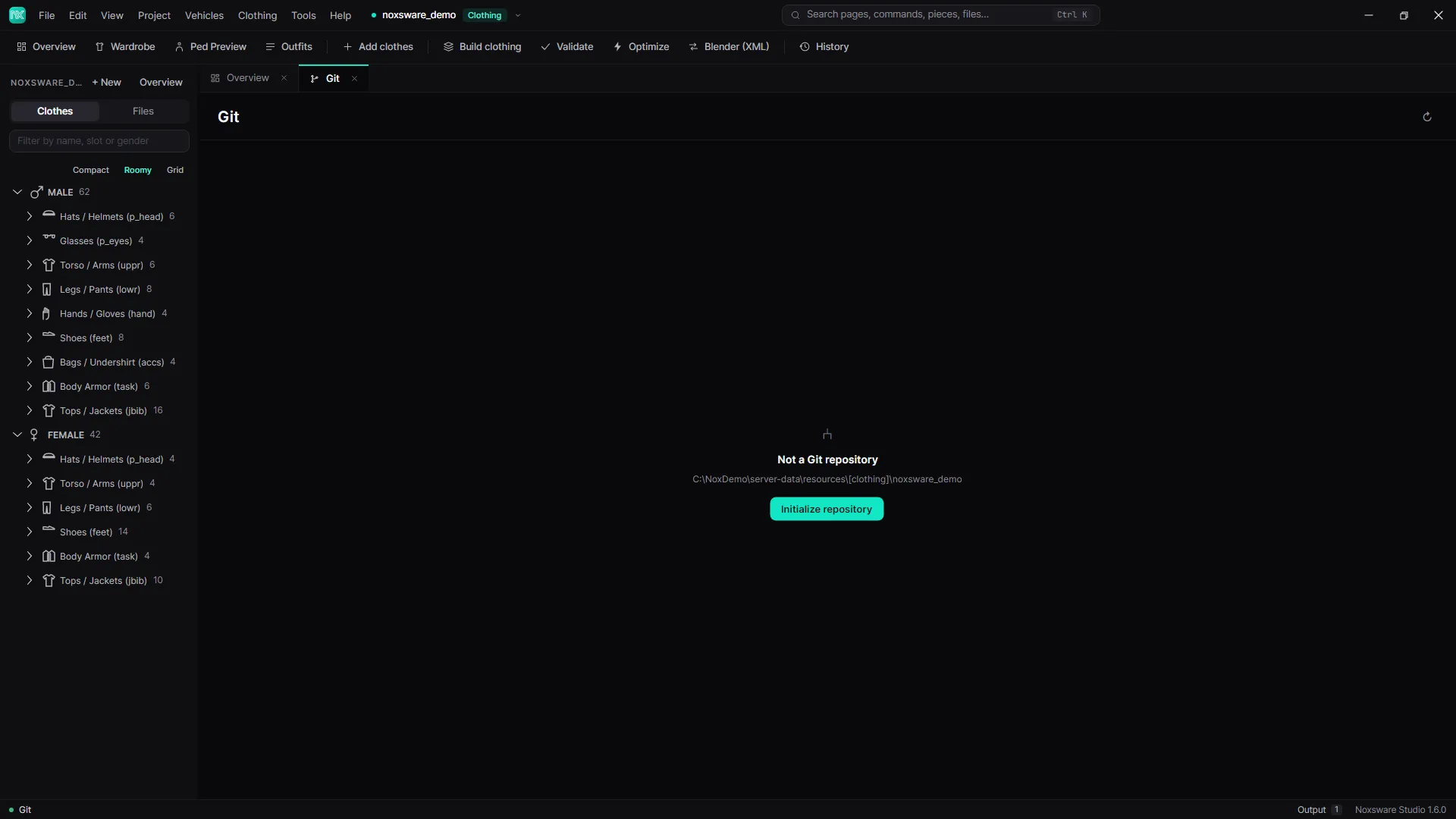
- If the folder isn’t a repository yet, the page says Not a Git repository. Click Initialize repository.
Commit your changes
Section titled “Commit your changes”- CHANGES lists every changed file in a tree. Tick files or folders to stage them, or click Stage all. Expand all opens every folder.
- Type a Commit message….
- Click Commit.
Game files add up quickly. A huge commit is split into batches of up to 10,000 files or 2 GB each. Tick Push each batch to push after each one, so no single push is too big for your Git host.
HISTORY lists your commits.
Sync with a remote
Section titled “Sync with a remote”The header shows the branch, and how many commits you are ahead (↑) or behind (↓). When the repository has a remote, Fetch, Pull and Push appear. The first push sets the upstream branch for you.
The page has no button to add a remote. Add one once from a terminal in the project folder:
git remote add origin https://github.com/you/your-pack.gitNext: Settings and shortcuts.