

Handling
Handling turns a real car’s specs into a full handling.meta. You don’t have to know what fInitialDriveForce does to get a car that drives like the real thing.
Open a vehicle project, then Handling in the toolbar. Double-clicking a .meta with “handling” in its name in the Explorer opens it here too.
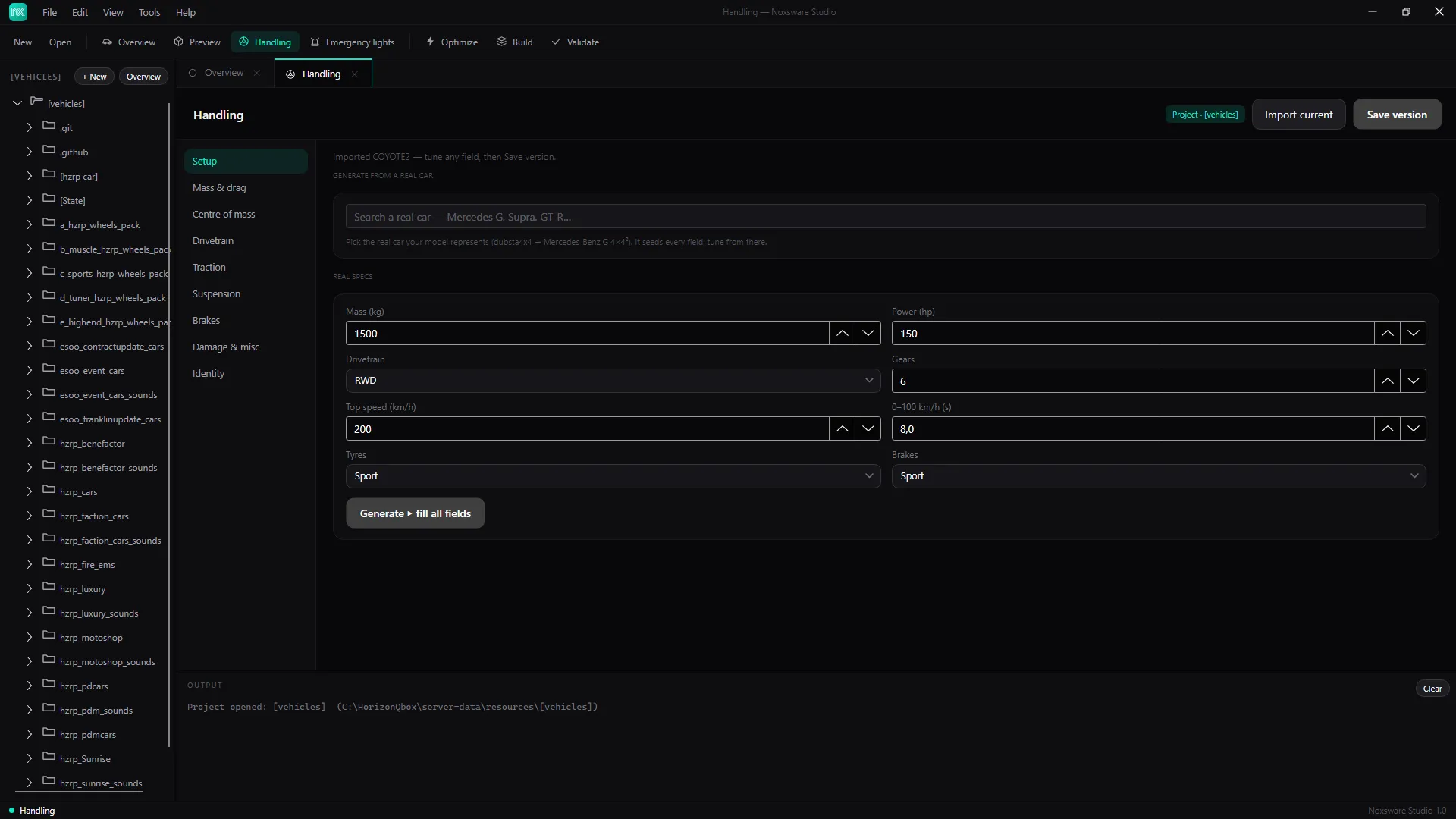
1. Start from the car’s current handling, or from a real car
Section titled “1. Start from the car’s current handling, or from a real car”When the page opens, it reads the project’s handling.meta by itself: Imported COYOTE2 — tune any field, then Save version. Click Import current to read it again.
To start from a real car instead, use Generate from a real car:
- Click the search box (Search a real car — Mercedes G, Supra, GT-R…) and pick the car your model represents, for example dubsta4x4 → Mercedes-Benz G 4×4².
- Every field is filled in straight away: Seeded from {car} — IRL handling generated.
Built-in cars include the Mercedes-Benz G 500 4×4² and Mercedes-AMG G 63, Jeep Wrangler Rubicon, Toyota Land Cruiser 80, Ford F-150 Raptor, Toyota Supra Mk4, BMW M3 E46, Ford Mustang GT, Subaru Impreza WRX STI, Nissan GT-R R35, Porsche 911 GT3 (992), Chevrolet Corvette C8, Lamborghini Aventador, Bugatti Chiron, Honda Civic Type R EK9, VW Golf GTI Mk7 and Ford Crown Victoria.
2. Or type the specs yourself
Section titled “2. Or type the specs yourself”Under Real specs:
| Field | Range |
|---|---|
| Mass (kg) | 500 – 4000 |
| Power (hp) | 20 – 2500 |
| Drivetrain | FWD, RWD, AWD |
| AWD front bias | 0.1 – 0.9 (AWD only; 0 is all rear, 1 all front) |
| Gears | 1 – 10 |
| Top speed (km/h) | 40 – 500 |
| 0–100 km/h (s) | 2 – 20 |
| Tyres | Street, Sport, Race |
| Brakes | Stock, Sport, Race |
Click Generate ▸ fill all fields.
3. Tune
Section titled “3. Tune”The left rail has the groups: Mass & drag, Centre of mass, Drivetrain, Traction, Suspension, Brakes, Damage & misc and Identity. Each field has a slider and a number box. The box accepts values outside the slider’s range if you need them.
Identity holds the handling name (it must match the car’s handlingId), AI handling, monetary value, and the model, handling and damage flags.
For what each field means, see the handling reference (also under Help → Handling reference in the app).
4. Save and apply
Section titled “4. Save and apply”Save version keeps a snapshot of the handling in the project. It does not change your handling.meta yet: Staged version 14:02:31 → apply it from the project’s Overview.
To put it in the real file, go to Overview → Version history and click Apply on the version. The studio says what will happen and asks first, for example Updates COYOTE2 in handling.meta. The other 11 car(s) in it are left as they are.
Applying changes only that car in handling.meta:
- other cars in the file are left alone,
- the car’s
SubHandlingData(bike, boat and advanced-flag blocks) is kept, - fields the editor doesn’t know about are kept,
- if the car isn’t in the file yet, it’s added.
Before the studio writes the file for the first time, it keeps the original as handling.meta.noxbak. If the file can’t be read, nothing is written.
To go back, apply an older version. Edit on a handling version reopens this page with that version’s real specs.
Without a project
Section titled “Without a project”With no project open, the button reads Save handling.meta… and saves a file wherever you choose.