

Animation projects
An animation project keeps your animation work in one folder: the creator’s files (.noxanim), the clips you export (.ycd) and the FiveM resources that play them. This page shows how to make one, what the project’s Overview shows, and how to play GTA animations in Ped Preview.
Make an animation project
Section titled “Make an animation project”-
On the Start page, click New project.
-
Under Project type, pick Animation.
-
Type a Project name.
-
Under Project folders, click Create new folder… for an empty folder, or Add folder… to use one you already have.
-
Click Create animation project.
The project’s toolbar has Overview, Animation creator and Ped Preview.
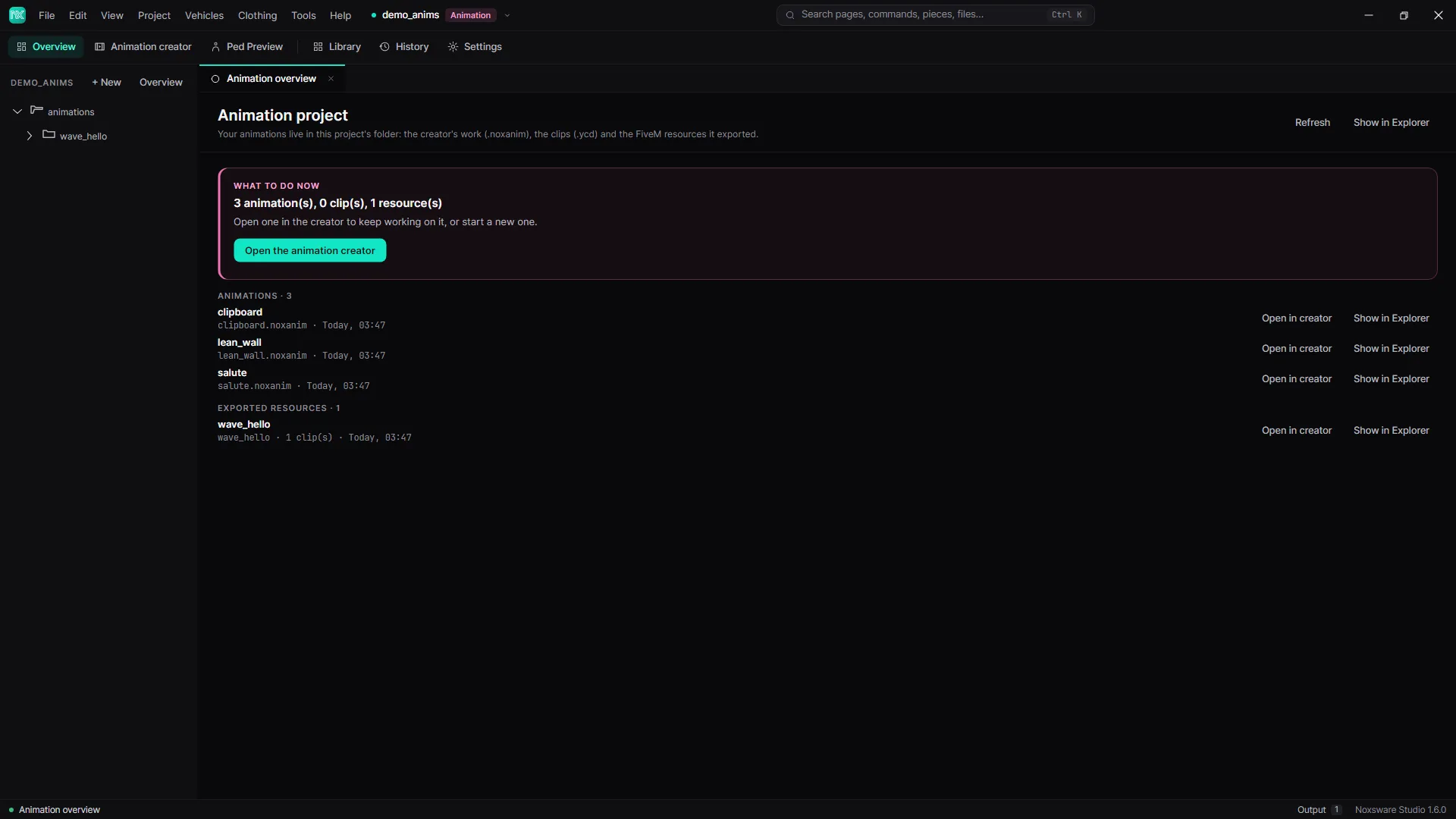
The animation Overview
Section titled “The animation Overview”Overview lists what is in the project’s folder:
| Section | What it lists |
|---|---|
| ANIMATIONS | Your creator files (.noxanim). Each is a whole animation you can keep editing. |
| CLIPS | Exported clip dictionaries (.ycd). |
| EXPORTED RESOURCES | FiveM resources the creator exported, with how many clips each has. |
Each row has Open in creator and Show in Explorer. At the top, Refresh reads the folder again and Show in Explorer opens it.
An empty project shows Make your first animation with Open the animation creator.
The Animation creator tab shows the same recent work, with a big Open the animation creator button and where your saves go. See The animation creator.
Where your files go
Section titled “Where your files go”With an animation project open, the creator’s save and export windows start in the project’s folder, so your .noxanim files, clips and resources land there and show up on the Overview. With no animation project open, the creator asks where to save each time.
Play GTA animations in Ped Preview
Section titled “Play GTA animations in Ped Preview”Ped Preview plays real GTA animations on a ped, so you can see how a clip moves before you build on it. It works on the free plan.
- Add animation (.ycd)… loads a clip dictionary from the game files or a FiveM resource. Each clip in it is added to the list on the left and stays there next time. You can also drop a
.ycdon the ped. - Remove animation takes the selected clip off the list. The
.ycdfile is not touched. - Speed sets how fast the ped moves; 1× is the game’s own speed.
- Turn slowly turns around the ped. Dragging pauses it.
Search the game’s clips
Section titled “Search the game’s clips”Type in Search game clips… on the Ped Preview toolbar to find any GTA V animation by its dictionary or clip name, like move_m@hipster walk or sit chair. The clip you pick plays on the ped and stays in the animation list.
The first search reads the clip names from your GTA V install once, which takes a minute or two. It needs GTA V on this PC; if the studio cannot find it, set the folder in Settings → GTA V folder.
Create animation… on the same toolbar opens the animation creator.
Next: The animation creator.