

Server check
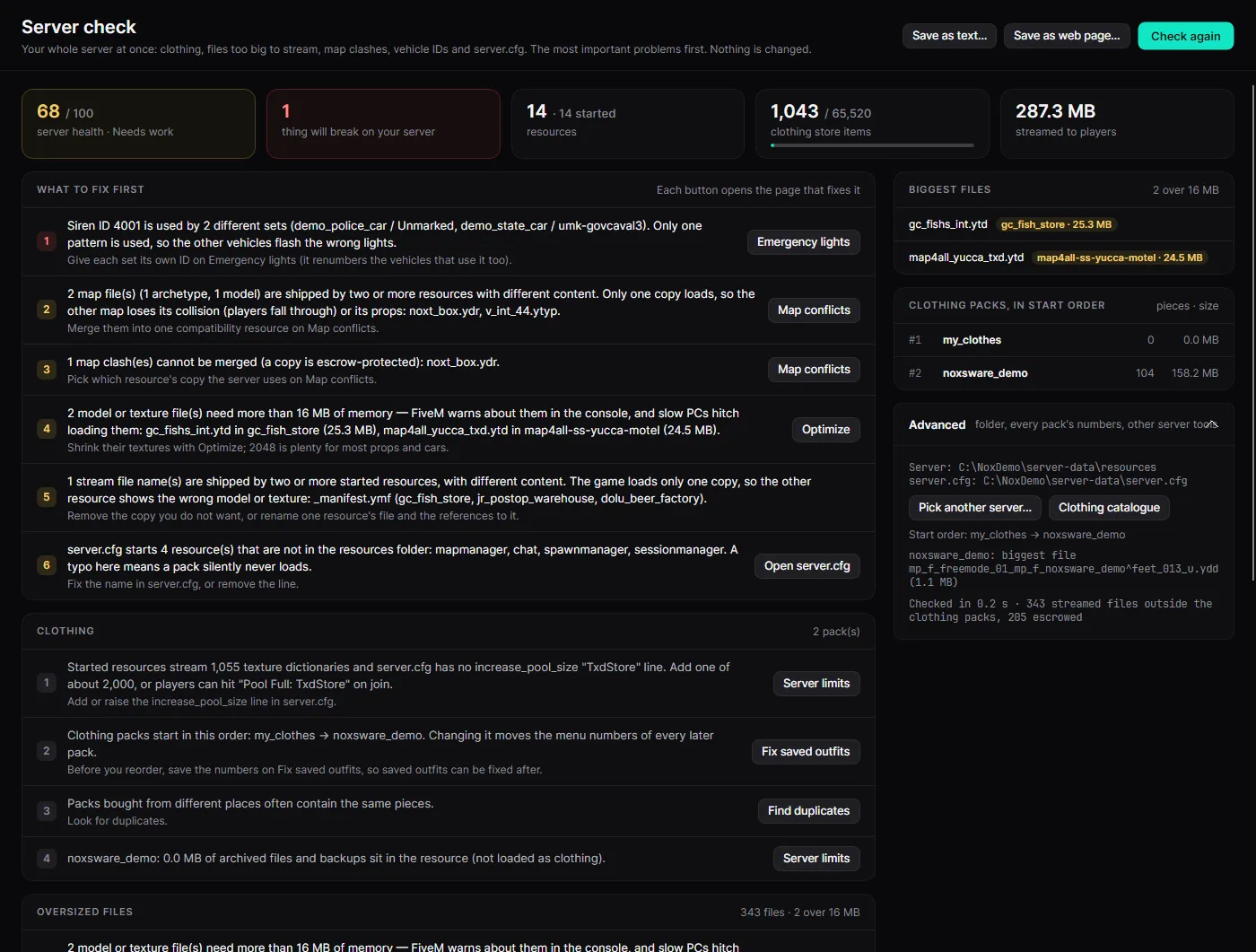
Server check reads every resource on your server and gives you one report: clothing, files too big to stream, map clashes, vehicle IDs and server.cfg. The most important problems come first, and each one has a button that opens the page that fixes it. The check changes nothing.
Server check works on the free plan.
Check your server
Section titled “Check your server”-
Open Tools → Server tools (Experimental) → Server check. The page itself is not experimental.
-
Click Check my server. With a project open, the studio checks the server that project is in. With no project open, click Pick folder… and pick your server’s resources folder (any folder inside it works too).
-
Wait for the check. It reads only the start of each file, so nothing is unpacked, but a big server still takes a minute or two.
-
Read the report from the top: the score, then What to fix first.
The server you pick is shared by the other server pages (Enhanced readiness, Fix saved outfits, Duplicate clothing and Clothing catalogue), so you pick it once. To check another server, open Advanced and click Pick another server….
Read the numbers at the top
Section titled “Read the numbers at the top”| Number | What it means |
|---|---|
| Score / 100 | The server’s health, with a word for it (see below). |
| Problems | How many things will break on your server. When there are none, how many are worth a look. |
| resources | Every resource in the folder, and how many server.cfg starts. |
| clothing store items | Store items across the started clothing packs, out of 65,520. See Server limits. |
| streamed to players | The total size of what players download. |
How the health score works
Section titled “How the health score works”The score starts at 100. Each problem that will break something costs 12 points (60 at most). Each finding worth a look costs 4 points (35 at most). Notes cost nothing.
| Score | Label |
|---|---|
| 90 to 100 | Healthy |
| 70 to 89 | Needs a look |
| 40 to 69 | Needs work |
| Below 40 | At risk |
Fix what matters first
Section titled “Fix what matters first”What to fix first lists up to eight of the most important findings, problems before warnings. Below it, every finding is grouped by area. An area with nothing in it says Nothing found.
| Area | What it looks for |
|---|---|
| Clothing | The shared clothing limits, two packs using the same collection name, pieces the .ymt lists but whose model file is missing, pieces with fewer colour files than the .ymt says, files over 16 MB, escrow-protected files, and the order the packs start in. |
| Oversized files | Models and textures (.ydd, .ytd, .yft, .ydr, .yld) in every resource that need more than 16 MB of memory. The bigger the file, the more serious the finding. |
| Map clashes | Map files (.ybn, .ymap, .ytyp) shipped by two or more resources with different content, and whether the noxsware-compat resource from Map conflicts is built, started and up to date. |
| Vehicles | Siren, mod kit and light setting IDs that clash, and vehicle resources that server.cfg does not start. |
| server.cfg | ensure lines that name a resource that is not there, resources started twice, and resources in the folder that are never started. |
| Resources | Two resources with the same name, and the same stream file shipped by two started resources with different content. |
Each finding says what is wrong and, under it, how to fix it. Its button opens the right page with the check already done there, so you don’t have to find the problem again.
| Button | What it opens |
|---|---|
| Server limits | Server limits, checking the same server. |
| Optimize | Optimize, with the oversized files already added. |
| Validate | Validate, checking that pack. |
| Find duplicates | Duplicate clothing, with a search started. |
| Fix saved outfits | Fix saved outfits. |
| History | History. |
| Map conflicts | Map conflicts, checking the same resources. |
| Emergency lights | The Vehicle IDs page, checking the server. |
| Open server.cfg | Your server.cfg in its default program. |
| Open file / Open folder | The file or folder the finding is about. |
Some findings have no button. For example, a map or collision file over 16 MB has no textures to shrink: split it in a map editor, or ask the map’s maker for a lighter version.
On the right, Biggest files lists the files over 16 MB, and Clothing packs, in start order lists each pack with its number of pieces and its size. A pack that server.cfg doesn’t start says (not started).
Save the report
Section titled “Save the report”Click Save as text… for a plain .txt file, or Save as web page… for one .html file that opens in any browser. The web page carries everything in one file, so you can send it to whoever runs your server. Both are named server-check- and the date.
The text version also goes to the Output panel (View → Output) after each check. Click Check again after you fix something.
Good to know
Section titled “Good to know”- Rows you chose to ignore in Validate (a pack’s
.noxsware/ignore.json) are not reported again. The web page lists them under Ignored. - Escrow-protected files can’t be read, so their size isn’t checked. They still load in game.
- Without a
server.cfgabove the resources folder, every pack counts as started. - Advanced shows the folder and
server.cfgthat were checked, the start order, and the biggest file in each pack. It also has a button to the Clothing catalogue.
Next: Server limits explains the clothing limits in detail.