

Fix saved outfits
When you add, remove, reorder or renumber clothing packs, players’ saved outfits point at the wrong pieces. Fix saved outfits works out every piece’s new number and writes a SQL file your database can run. It never connects to your database.
When you need it
Section titled “When you need it”Clothing menus number pieces in order: the game’s own pieces first, then each pack in the order server.cfg starts it. Numbers change when you:
- add a pack before another one, or remove one,
- change the order of the
ensurelines, - delete pieces with renumbering (for example Remove and renumber in Duplicate clothing),
- move or duplicate pieces between packs.
Save today’s numbers before you change anything
Section titled “Save today’s numbers before you change anything”If you know a change is coming, save the numbers first. It makes the fix much easier.
- Open Tools → Server tools (Experimental) → Fix saved outfits (Experimental).
- Click Save today’s numbers. With no project open, pick your server’s resources folder first.
The numbers are saved as a numbers-<date>.json file in a .noxsware\menu-numbers folder next to your resources folder.
Fix the outfits
Section titled “Fix the outfits”-
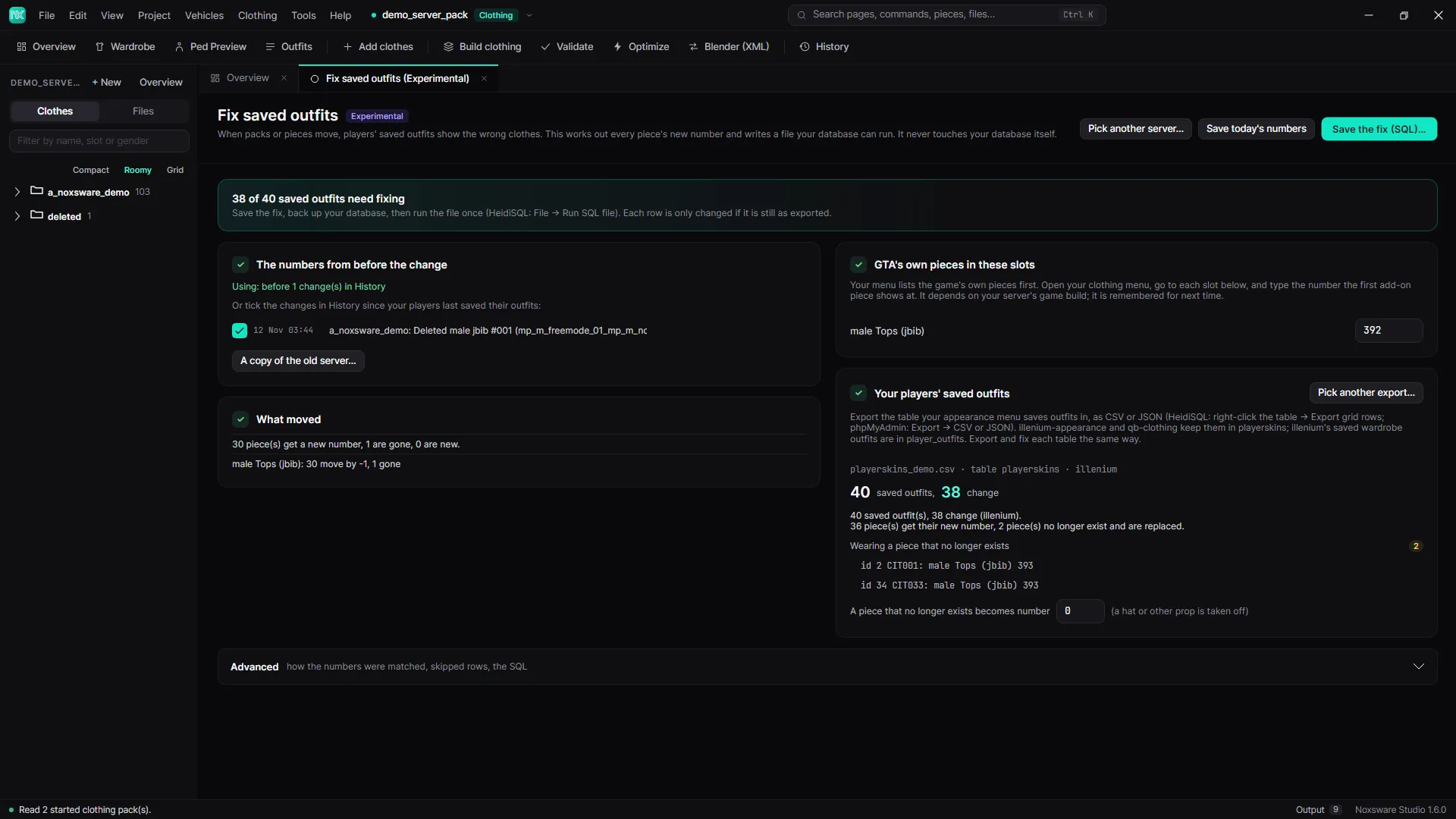
Click Read my server. The studio reads the numbers your packs have now.
-
The numbers from before the change. Pick one source:
- Numbers you saved earlier: click Use next to a saved file.
- The changes in History: tick the changes made since your players last saved their outfits. Deletes, imports, moves and renumbers are listed.
- A copy of the old server…: pick the resources folder of a backup from before the change.
-
What moved lists every slot whose numbers changed. If nothing moved, the page says Nothing moved and saved outfits are fine.
-
GTA’s own pieces in these slots. Your menu lists the game’s own pieces first, so the studio needs to know how many there are. Open your clothing menu in game, go to each slot listed, and type the number the first add-on piece shows at. It depends on your server’s game build, and the studio remembers it for next time.
-
Your players’ saved outfits. Export the outfits table from your database as CSV or JSON, then click Pick the export…:
- HeidiSQL: right-click the table → Export grid rows.
- phpMyAdmin: Export → CSV or JSON.
-
Read the dry run: how many saved outfits were read and how many change, plus any outfit wearing a piece that no longer exists.
-
Click Save the fix (SQL)….
-
Back up your database, then run the file once (in HeidiSQL: File → Run SQL file).
Which tables to export
Section titled “Which tables to export”| Appearance resource | Table |
|---|---|
| illenium-appearance | playerskins, and player_outfits for saved wardrobe outfits |
| qb-clothing | playerskins |
Export and fix each table the same way, one at a time.
What the SQL file does
Section titled “What the SQL file does”- It backs up the table first and runs in one transaction.
- It writes one
UPDATEper changed row. Each one only applies if the row is still exactly as you exported it, so outfits players changed in the meantime are left alone. - A dry-run report is saved next to the SQL file. It lists every change, the rows that were skipped, and the outfits that wore a piece that no longer exists.
A piece that no longer exists becomes the number you set on the page (0 by default). A hat or other prop is taken off instead.
Good to know
Section titled “Good to know”- Each piece is recognised by its model file and the sizes of its colours, so it keeps its identity when its file is renamed, renumbered or moved to another pack. Pieces whose files are missing are matched by position only.
- Advanced shows how the numbers were matched, the skipped rows and the first changes.
- The GTA counts you type here also give the Clothing catalogue full menu numbers.
Next: Clothing catalogue.