

AI assistants (MCP)
Noxsware Studio can let an AI assistant work with it through the Model Context Protocol (MCP). Claude Code or Claude Desktop can then open your packs, list pieces, run Validate and its fixes, build, measure what the optimizer would save, and take screenshots. Everything it changes is recorded in History, so you can undo it.
What the assistant can do
Section titled “What the assistant can do”| Tool | What it does | Changes files? |
|---|---|---|
open_pack |
Opens a resource folder (clothing, vehicle or MLO). In the studio window it opens as the current project. | No |
list_pieces |
Lists the clothing pieces in the open pack: gender, slot, number, model file and number of colours. It can filter by gender and slot. | No |
validate |
Runs the Validate checks on the open pack, and can also measure wasted texture space. | No |
apply_fix |
Applies the fix of one row from the last validate run. |
Yes, recorded in History |
fix_all |
Applies every fix it can from the last validate run (optimize oversized textures, make colours square). |
Yes, recorded in History |
build |
Builds the open pack into a new FiveM-ready resource folder (stream/ and fxmanifest.lua), optimizing textures on the way. It never overwrites: the output folder must not exist yet. |
Makes a new folder, recorded in History |
optimize_report |
Measures what Optimize would save, per file and in total, without changing anything. | No |
screenshot |
A picture of the studio window as it is now. | No |
run_command |
Runs one of the studio’s commands, as the Ctrl+K palette does: opens a page or a menu item. Without a command it lists them. |
Depends on the command |
By default, build makes a noxsware-build folder next to the pack, with a resource named after the pack plus _built.
Turn it on
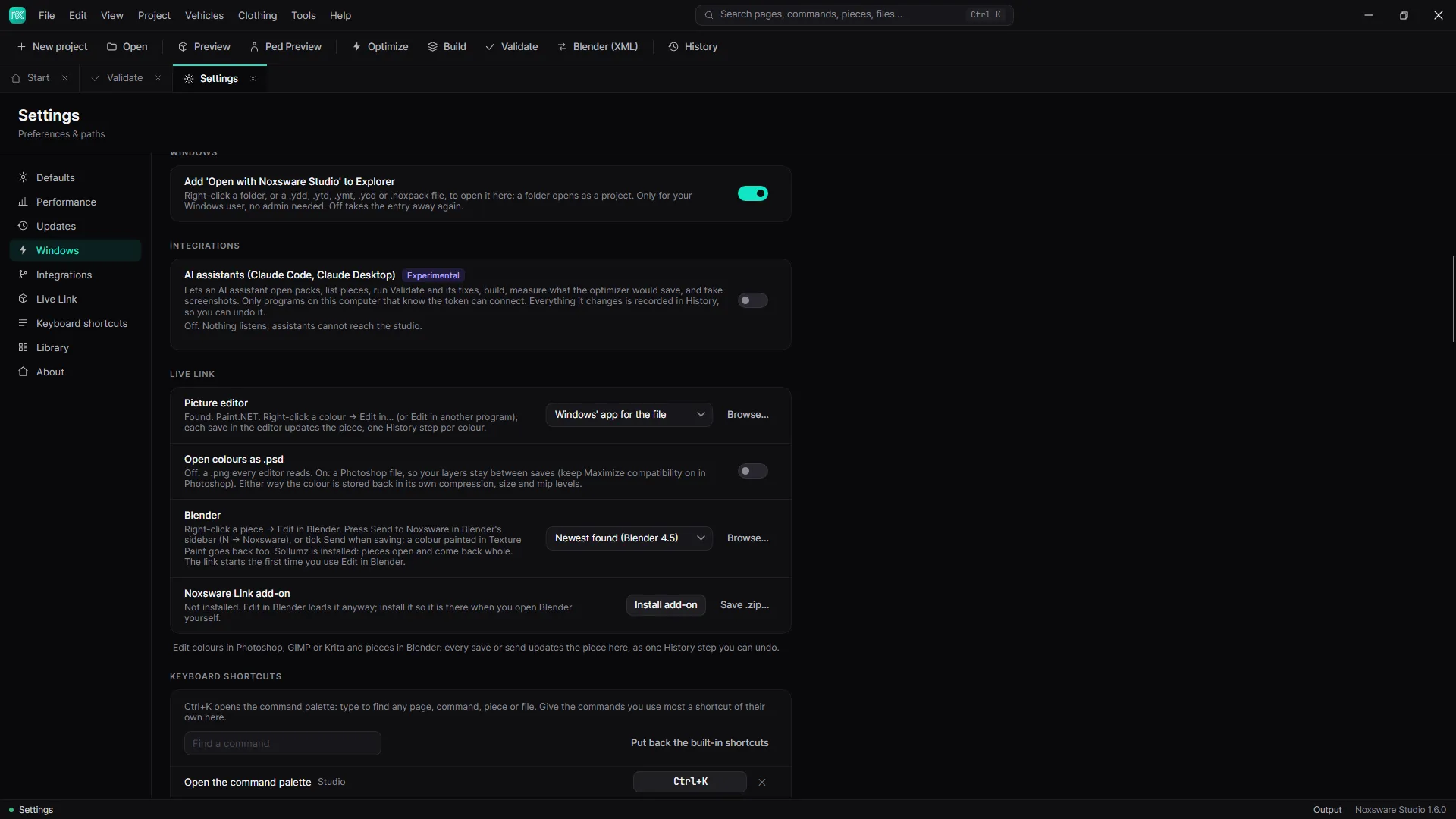
Section titled “Turn it on”- Open File → Settings and go to Integrations.
- Switch on AI assistants (Claude Code, Claude Desktop).
The line under it says On: listening on http://127.0.0.1:47615/mcp (this computer only). Only programs on this computer that know the token can connect. Switched off, nothing listens.
Connect Claude Code
Section titled “Connect Claude Code”-
With the switch on, find Claude Code: run this once in a terminal and click Copy.
-
Paste it into a terminal and run it. It looks like this, with your own token:
Terminal window claude mcp add --transport http noxsware-studio http://127.0.0.1:47615/mcp --header "Authorization: Bearer <your token>" -
Start Claude Code and ask it to open your pack.
-
Keep the studio open with the switch on while you use it. Claude Code talks to the running studio, so you see what it does.
The token in the command is a password to the studio. Don’t share it.
Connect Claude Desktop
Section titled “Connect Claude Desktop”-
Find Claude Desktop: add this to claude_desktop_config.json and click Copy.
-
Open Claude Desktop’s
claude_desktop_config.jsonand add the entry. It points at the studio’s program with--mcp; the copied text already has the real path:{"mcpServers": {"noxsware-studio": {"command": "C:\\path\\to\\Noxsware.App.exe","args": ["--mcp"]}}} -
Restart Claude Desktop.
Claude Desktop starts its own copy of the studio in the background, with no window. It doesn’t need the switch or the token. Because there is no window, screenshot and run_command don’t work there. It checks your stored license when it starts; if it can’t, it uses the free plan’s rules.
Make a new token
Section titled “Make a new token”Click New token to replace the token. Assistants set up with the old one stop working until you add them again with the new command.
Good to know
Section titled “Good to know”- Ask the assistant to work on a copy of a live server’s pack. The studio tells it the same.
- Every change it makes shows in History, and the Output panel logs what it ran.
- The connection only listens on your own computer (127.0.0.1). Nothing is reachable from the internet.
Next: back to Settings and shortcuts.