

Server limits
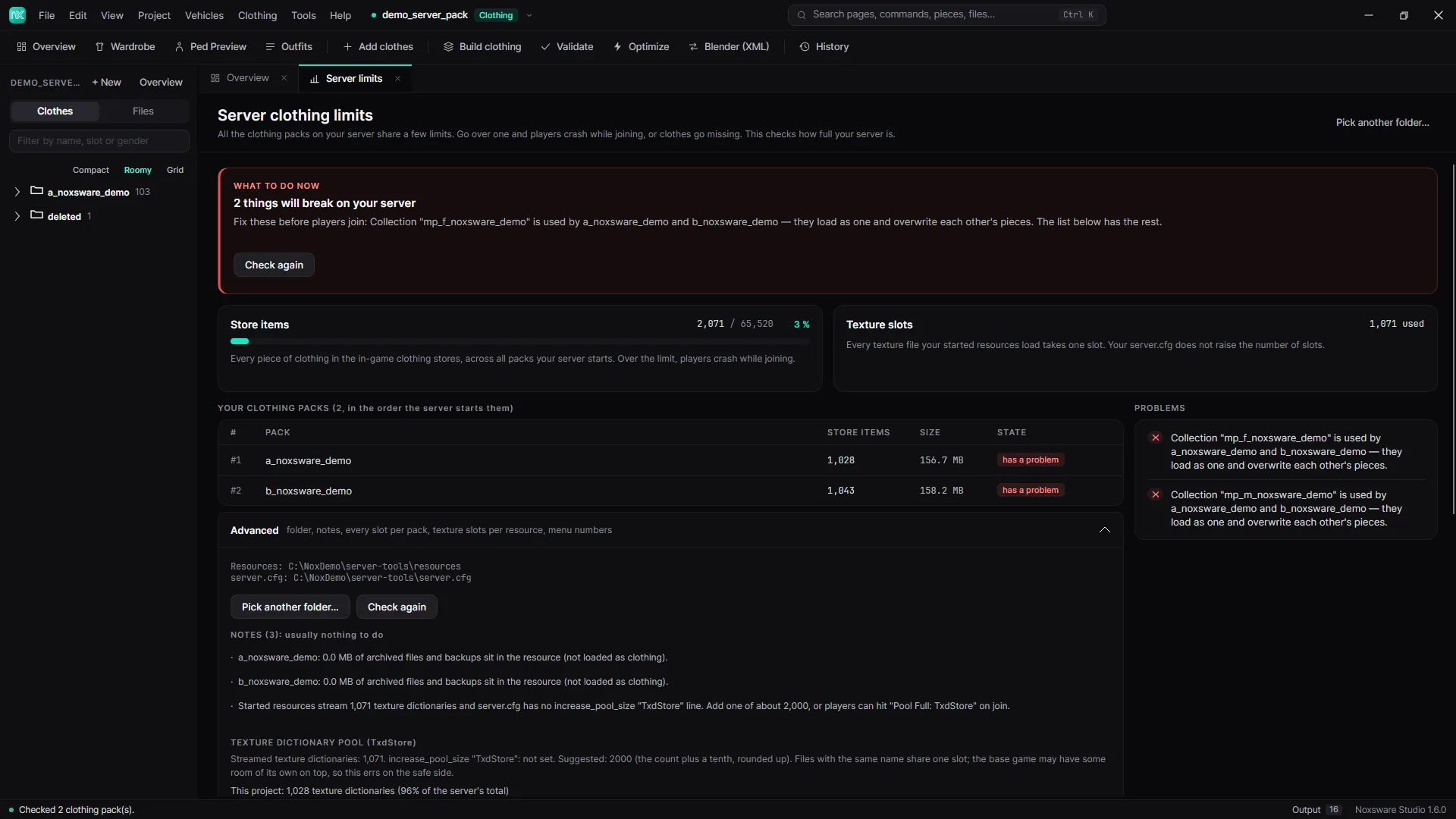
All the clothing packs on a server share a few limits. Go over one and players crash while joining, or clothes go missing. Server limits adds up every pack your server starts and tells you how full it is. It changes nothing.
Check your server
Section titled “Check your server”- Open Project → Server limits, or click a Server limits button on Server check.
- Click Check my server. The studio finds the server your project is in. To check another server, click Pick another folder… and pick its resources folder.
- The studio reads
server.cfgto see which packs the server starts, then counts every one of them.
The card at the top tells you where you stand:
| Card | What to do |
|---|---|
| Your server has room | Nothing. Nothing will break. |
| Getting full: worth a look | You are close to a limit. Read PROBLEMS on the right. |
| Add one line to your server.cfg | Your packs load more textures than the server makes room for. Click Copy the line and add it to server.cfg. |
| Almost out of texture slots: change one line in server.cfg | You have the line, but it is nearly used up. Copy the new line in place of the old one. |
| 1 thing will break on your server (or N things…) | You are over a hard limit. Fix it before players join. |
| No clothing packs found | Nothing in the folder looks like a clothing pack. Pick your server’s resources folder. |
Stay under 65,520 store items
Section titled “Stay under 65,520 store items”Store items shows how many clothing store entries your started packs use, out of 65,520. Each piece takes one entry, and each of its colours takes one more. The limit is for the whole server, so a pack can be fine on its own and too much beside the others.
Over the limit, players crash while joining, and the crash log blames the wrong resource. Past three quarters full, the page warns you. If some packs in the folder are not started, a line under the meter shows the total if every pack were started.
To get back under the limit, remove packs you don’t need, take out duplicate clothing, or give pieces fewer colours.
Add the increase_pool_size line
Section titled “Add the increase_pool_size line”Texture slots counts the texture files your started resources load. Each one takes a slot in the game’s texture pool (TxdStore). Files with the same name share one slot. When there are more than the server makes room for, players see Pool Full: TxdStore when they join.
When you need more slots, the card shows the exact line, for example:
increase_pool_size "TxdStore" 14000- Click Copy (or Copy the line on the top card).
- Paste it into
server.cfg. If there is anincrease_pool_size "TxdStore"line already, replace it. - Restart the server.
The suggested number is the slots you use plus a tenth, rounded up to the next thousand. Without the line, the page suggests adding one once your resources use more than 5,000 slots. With the line, it warns when you use more than nine tenths of it.
Read the pack list
Section titled “Read the pack list”YOUR CLOTHING PACKS lists every pack in the order the server starts them, with its store items, its size and its state:
| State | Meaning |
|---|---|
| fine | Nothing to fix. |
| getting full | A warning names this pack. |
| has a problem | A problem names this pack. |
| not started: players do not get it | server.cfg does not start it, so it is not counted. |
The start order matters. A pack’s pieces are numbered in clothing menus after the pieces of every pack that starts before it. If you change the order, the menu numbers of every later pack move, and players’ saved outfits show the wrong clothes. Fix saved outfits puts them right.
Problems and notes
Section titled “Problems and notes”| Message | What to do |
|---|---|
| Collection “X” is used by A and B — they load as one and overwrite each other’s pieces. | Two packs use the same collection name. Rename one, or merge them with Import from other packs. |
| …: N drawables, over the 256 a collection can index. | Too many pieces in one slot. Move some into another pack. |
| …: N drawables, past the 128 packs are normally split at. | Big packs usually stop at 128 per slot. New pieces go into another pack. |
| No server.cfg found above the resources folder — every pack is counted as starting. | Pick your real server folder, so the counts match what the server starts. |
| X is not started by server.cfg — it is not counted, and players do not get it. | Add ensure X to server.cfg if you want it. |
| X: … of archived files and backups sit in the resource (not loaded as clothing). | Hidden pieces (.noxoff) and .noxbak backups. They don’t load, but they make the folder bigger. |
Notes that usually need nothing are under Advanced.
See every slot per pack
Section titled “See every slot per pack”Open Advanced for the details:
- EVERY SLOT, PER PACK: for each pack and gender, how full each slot is, for example Tops 45/128. A slot turns amber at nine tenths and red when full. Hover a slot to see its game name.
- TEXTURE DICTIONARY POOL (TxdStore): the slot count, your current
increase_pool_size, the suggested value, the open project’s share, and the resources that use the most slots. - The resources folder and
server.cfgthat were read, with Pick another folder… and Check again.
Export menu numbers (CSV)
Section titled “Export menu numbers (CSV)”Each pack under EVERY SLOT, PER PACK has Export menu numbers (CSV)…. It writes one row per piece with its gender, slot, pack, its number in the pack (pack_number), its place after the game’s own pieces (addon_index), its number of colours and its file.
The number a player sees in a clothing menu is GTA’s own count for that slot plus addon_index. Read GTA’s count once in your appearance menu: it is the number the first add-on piece of that slot shows at. For a pack the server doesn’t start, addon_index stays empty.
Good to know
Section titled “Good to know”- The game limits themselves are listed in Game limits.
- Server check includes these limits in its report, along with everything else on the server.
Next: Duplicate clothing finds pieces you can remove to make room.