

History and undo
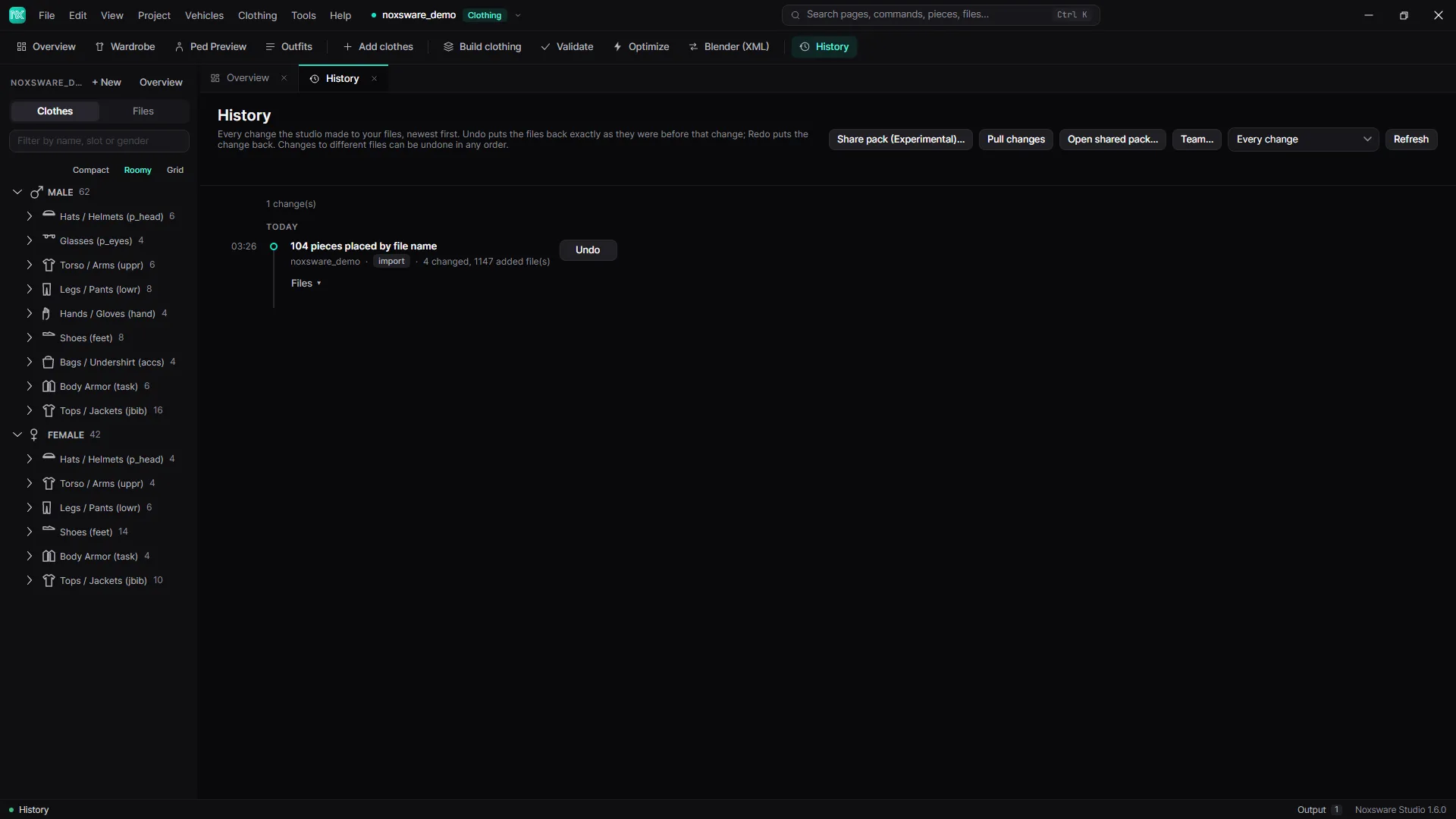
Every time the studio changes files on disk, it records the change in History. You can undo any change on its own, and redo it after. Nothing the studio does to your files is final.
History works on the free plan.
Two kinds of undo
Section titled “Two kinds of undo”| What you changed | How to undo |
|---|---|
| Files on disk: imports, deletes, hiding, heel heights, optimizing in place, moves, shop details, model edits and the rest | Edit → History (undo / redo changes)…, then Undo on the change |
| Edits to the clothing project itself, such as dropped colours or new numbers | Edit → Undo (Ctrl+Z) and Edit → Redo (Ctrl+Y) |
Edit → Undo and Redo work in clothing projects and remember your last 50 edits.
Undo a change
Section titled “Undo a change”- Open Edit → History (undo / redo changes)…, or click History in the toolbar.
- Find the change. The newest is at the top, grouped by day. Each row says what was done, what kind of change it is, and how many files were changed, added, hidden or removed, or renamed. Click Files ▾ to see them.
- Click Undo. The files go back exactly as they were before that change.
An undone change stays in the list. Click Redo to put it back exactly as it left the files.
Changes to different files can be undone in any order. When a later change touched the same files, undo that one first: the row says Cannot undo yet: and names it.
Undo anyway?
Section titled “Undo anyway?”If the files were edited after the change (by you, or by another program), the studio asks Undo anyway? (or Redo anyway?). It tells you which files changed. Confirming puts back the files as they were before the change, and those later edits are lost.
Filter the list
Section titled “Filter the list”Pick a kind in the filter to see only those changes:
Every change, Imports, Deletes, Hidden / brought back, Heel, hair, footsteps, Made square, Optimized, Moved / duplicated, Vehicle IDs, Meta files, Interiors, Files added, Fix all, Shop details, Renumbered, Renamed, Model edits, Shared pack pulls.
Refresh reads the list again. The line under the title says how many changes there are and how many are undone.
Files the studio keeps for you
Section titled “Files the studio keeps for you”Undo works because the studio never throws a file away while a change can still be undone.
| File | What it is |
|---|---|
.noxoff |
A hidden file. The studio adds .noxoff to its name (for example jbib_036_u.ydd.noxoff), so FiveM’s streamer ignores it. Bring back into the game or Undo takes the suffix off again. |
.noxbak |
A pristine copy of a file the studio rewrote in place, kept once beside it, for example after Optimize in place. |
.noxsware\imports\ |
The History records for a pack, inside the pack folder. FiveM doesn’t load this folder. |
Restore every original at once
Section titled “Restore every original at once”Tools → Advanced → Restore originals (undo every in-place rewrite) puts back every file in the open project that has a .noxbak copy, to how the pack shipped. It lists the files and asks first. It doesn’t touch hidden or renamed files, only files rewritten in place.
Use it when you want the whole pack back as it came, without undoing changes one by one.
Good to know
Section titled “Good to know”- History is kept per pack, beside the files, so it moves with the pack folder.
- Changes an AI assistant makes through AI assistants (MCP) are recorded here too.
- Changes pulled from a teammate show who made them. To take them back out, undo the pull. See Team sharing.
Next: Team sharing.