

Optimize textures
Optimize re-encodes textures inside .ytd, .ydr, .ydd and .yft files so they take less video memory and less space on disk.
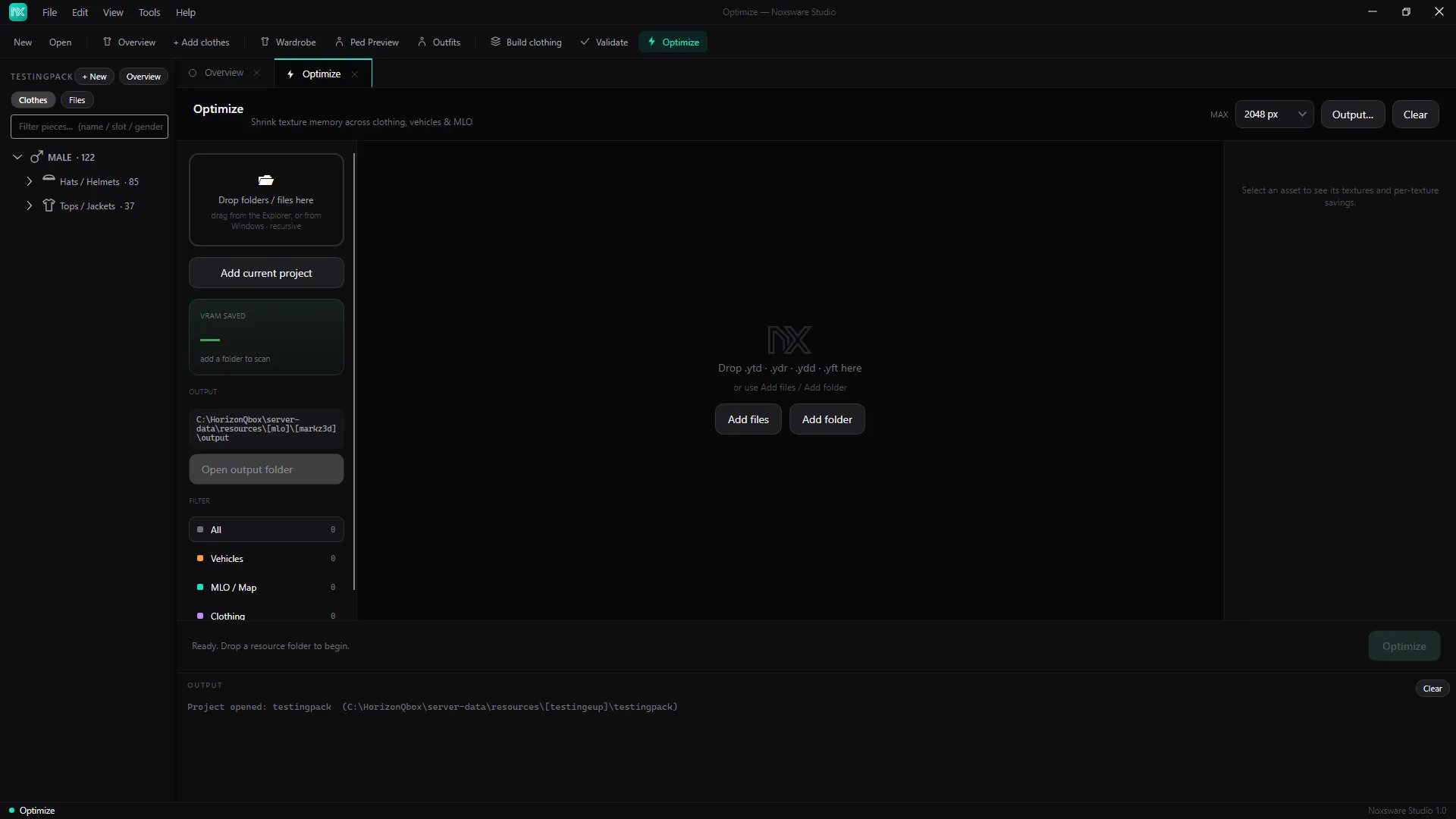
Optimize a resource
Section titled “Optimize a resource”- Set MAX in the header: 2048, 1024 or 512 px. Textures larger than that are scaled down.
- Add what to optimize:
- drag folders or files from Windows or the studio’s Explorer onto Drop folders / files here (folders are searched all the way down),
- or Add files / Add folder,
- or Add current project.
- Each file gets a status:
| Status | Meaning |
|---|---|
| OPTIMIZABLE | Will get smaller. Shows before → after. |
| ALREADY OPTIMAL | Nothing to gain. |
| ESCROW — LOCKED | Encrypted by Cfx.re. Cannot be read or optimized; skipped. |
| UNSUPPORTED / FAILED | Not a file the optimizer handles, or it couldn’t be read. |
Click a row to see each texture inside it with its own savings. VRAM SAVED on the left totals the gain. Filter narrows the list to Vehicles, MLO / Map, Clothing or Other.
- Click Optimize N.
When it’s done: Done. Saved 65.6 MB VRAM · 40.2 MB on disk → output folder. Click Open output folder.
Where the results go
Section titled “Where the results go”By default Optimize doesn’t touch your originals. It copies each whole resource into a noxsware_output folder next to the source, then replaces the optimized files in the copy. The copy is a complete, drop-in resource. Click Output… to pick another folder, or set a default in Settings.
In place
Section titled “In place”When you optimize from inside a project (right-click → Optimize, Optimize folder or Optimize textures (N); the Optimize buttons on the Overview; Add current project; or dragging from the studio’s Explorer), the output box says:
IN PLACE — overwrites the files where they came from (each original kept as .noxbak)
Before a file is rewritten for the first time, the studio keeps the original next to it as <file>.noxbak. If it can’t make that copy, it skips the file. To put the originals back, use File → Advanced → Restore originals (undo every in-place rewrite).
The backups make the resource bigger on disk. Once you’ve tested the optimized files in game, you can delete the .noxbak files.
To go back to copy mode, click Clear or pick a folder with Output….
What it does to textures
Section titled “What it does to textures”- Textures with transparency become DXT5, opaque ones DXT1. Uncompressed
A8R8G8B8textures shrink about 4×. - Anything over MAX is scaled down.
- Mipmaps are rebuilt.
- It never encodes to BC7.
Builds can optimize as they go: see Optimize textures on Build clothing and Optimize on build on Build.