

Put an animation in game
When your animation is ready in the animation creator, export it as a .ycd clip for your own scripts, or as a FiveM resource that plays it with a chat command such as /wave.
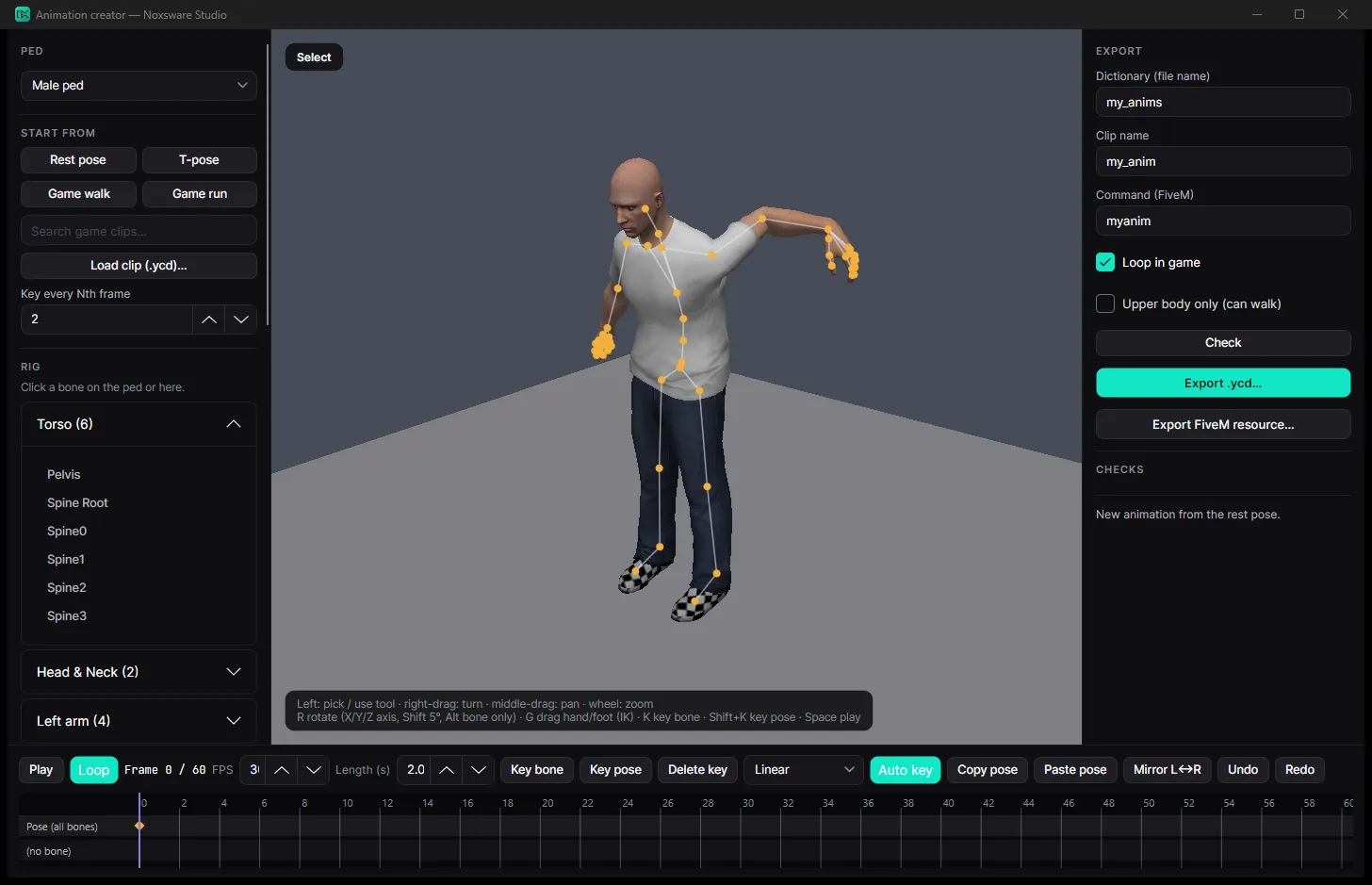
Fill in the export fields
Section titled “Fill in the export fields”On the right of the creator, under EXPORT:
| Field | What it is | Example |
|---|---|---|
| Dictionary (file name) | The clip dictionary’s name. It becomes the .ycd file name and the resource’s folder name. |
my_wave |
| Clip name | The clip’s name inside the dictionary. Scripts play it by this name. | wave |
| Command (FiveM) | The chat command the resource adds, without the /. |
wave |
All three take lower-case letters, digits and _ only.
Tick Loop in game to repeat the animation until it is stopped, and Upper body only (can walk) to let the player walk while it plays.
Check before you export
Section titled “Check before you export”Click Check. The CHECKS list shows anything that would go wrong. Lines marked ✕ stop the export: Fix the checks marked ✕ first. Common ones:
- Nothing is keyed yet: key a pose (K) before exporting.
- A name with capitals, spaces or other characters.
- Unkeyed bones: … moved at frame … but not keyed. Key them (
K) or they snap back.
When everything is fine it says All good. The export buttons run the same checks.
Export a FiveM resource
Section titled “Export a FiveM resource”-
Click Export FiveM resource….
-
Pick the folder the resource goes in, for example your server’s
resourcesfolder. The studio makes a folder named after the dictionary inside it. -
Add the resource to
server.cfg:ensure my_wave -
Restart the server, or type
refreshand thenensure my_wavein the server console.
The resource holds:
my_wave/ fxmanifest.lua client.lua stream/ my_wave.ycdstream/my_wave.ycdis the clip dictionary. FiveM streams it by itself.client.luaadds the commands. It loads the dictionary, plays the clip on your ped, and attaches any props.fxmanifest.lualoadsclient.lua.
Play it in game
Section titled “Play it in game”- Type
/wavein chat to play the animation on your ped. - Type
/wavestopto stop it. That also removes any props and the second actor.
Every player can use the command. With a second actor, the resource places a copy of your ped next to you that plays the other clip. To play it with another player instead, open client.lua: the comments show what to change.
Export only the clip (.ycd)
Section titled “Export only the clip (.ycd)”Click Export .ycd… and choose where to save the file. Use this when you play animations from your own script or an emote menu. Put the .ycd in a resource’s stream folder and play it by its dictionary and clip name, for example:
RequestAnimDict('my_wave')while not HasAnimDictLoaded('my_wave') do Wait(0) endTaskPlayAnim(PlayerPedId(), 'my_wave', 'wave', 8.0, -8.0, -1, 0, 0.0, false, false, false)The status line says the file was written and reads it back, so you know it opened. With a second actor, the dictionary holds wave_a and wave_b.
Good to know
Section titled “Good to know”- Props are not in the
.ycd. Only the exported resource attaches them. - Check the animation in Ped Preview first: drop the
.ycdon the ped to watch it.
Next: Server check.