
The wardrobe and a piece
The wardrobe is every piece in your clothing project. This page shows how to find a piece, what its page holds, and how to move, copy, hide or delete pieces.
 Video coming soon
Find a piece
Section titled “Find a piece”Open Wardrobe from the toolbar (or Clothing → Wardrobe). The header shows the project name and a count of pieces, colours and hidden pieces.
The pieces are listed as a tree in the Explorer on the left, in its Clothes view: pack › gender › slot › piece. Big slots are split into number ranges such as #000-#049. If you hide the Explorer (View → Explorer), the Wardrobe shows its own list instead.
Three buttons above the list change how pieces look:
| Layout | Shows |
|---|---|
| Compact | One line per piece. |
| Roomy | A line per piece with its picture. |
| Grid | Tiles with pictures. Pictures are drawn once in the background and kept in the pack’s .noxsware folder. |
Filter the list
Section titled “Filter the list”Type in the filter box to narrow the list. It matches the piece’s name, its slot (code or plain name), its gender and its pack. Two keywords do more:
| Type | Shows |
|---|---|
!tex |
Pieces with no colours yet. They don’t show in game until they have one. |
review |
Pieces whose slot or gender the studio could not read for sure. Check them. |
A piece with a problem has a red or yellow mark. Click it to open its page and see the problem at the top.
Open a piece’s page
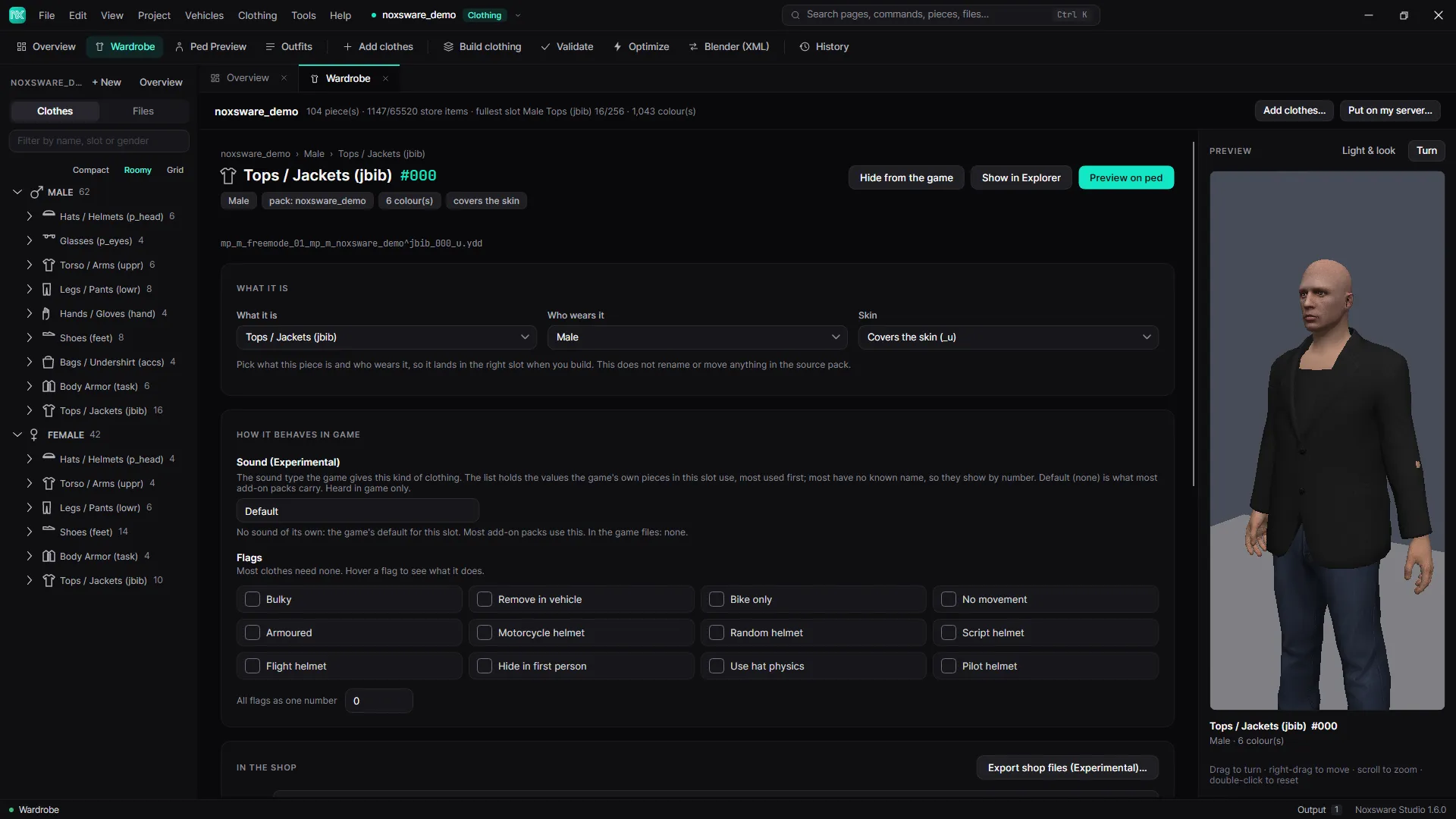
Section titled “Open a piece’s page”Click a piece. Its page opens in the middle with a live preview on the right.
The header shows where the piece is (pack › gender › slot), its number (for example #046), its gender, its pack, its colour count and its skin type. Hover the number to see it counted from one. The buttons on the right:
- Hide from the game / Bring back into the game (see Hide a piece).
- Show in Explorer opens the folder with the file selected.
- Cloth physics shows only for pieces with a
.yldfile. See How a piece behaves in game. - Preview on ped puts the piece on the Ped Preview with a picker for its colours.
The sections below, top to bottom:
| Section | What you do there | Page |
|---|---|---|
| WHAT IT IS | Set What it is (the slot), Who wears it (Male / Female) and Skin: Covers the skin (_u) or Shows skin (_r). | This page |
| HOW IT BEHAVES IN GAME | Flags, heels, hair squash, sound. | How a piece behaves in game |
| IN THE SHOP | Label, price, shop, tags. | Shop details and store media |
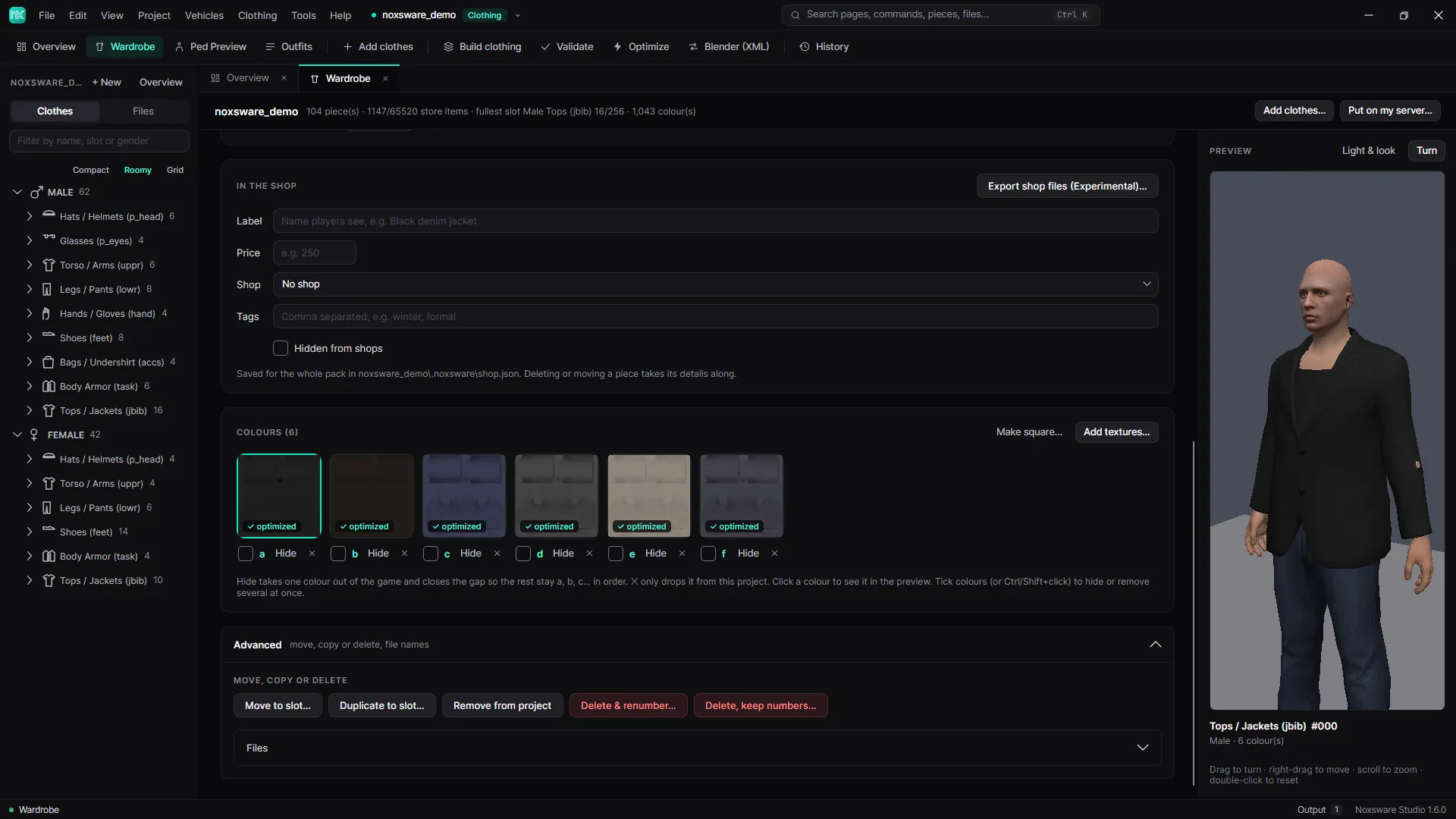
| COLOURS | Add, hide, replace, edit and export colours. | Colours and textures |
| Advanced (folded) | MOVE, COPY OR DELETE, and Files: the file paths, alternates, cloth file and the names the piece gets in a built resource. | This page |
Setting What it is and Who wears it tells the studio where the piece goes when you build. It does not rename or move anything in the source pack.
Move, copy or delete a piece
Section titled “Move, copy or delete a piece”Open Advanced at the bottom of the piece page. Under MOVE, COPY OR DELETE:
| Button | What it does |
|---|---|
| Move to slot… | Moves the piece to another number in the same slot. The files are renamed and the pack’s .ymt is updated. |
| Duplicate to slot… | Copies the piece to another number in the same slot. |
| Remove from project | Drops the piece from the project’s wardrobe only. Its files stay on disk, untouched. |
| Delete & renumber… | Deletes the piece and its colours from the pack, and moves every later piece in the slot down one number (.ymt, files and shop meta). |
| Delete, keep numbers… | Deletes the piece’s model and colours but leaves an empty item at its number. The menu still lists it (as nothing), and every other piece keeps its number. |
Before deleting, the studio tells you if saved outfits in this project use the piece. Every move, copy and delete is one step in History, so you can undo it. (The tooltips on these buttons still say “File ▸ Undo an import…”; use History instead.)
Hide a piece
Section titled “Hide a piece”Hide from the game takes a piece out of the game without deleting it and without changing any other number. The studio renames its files with a .noxoff ending, so FiveM ignores them, and sets the piece’s colour count in the .ymt to 0, so no menu offers it. Bring back into the game undoes it. Nothing in the files themselves changes.
Hidden pieces show as archived in the tree.
Right-click a piece
Section titled “Right-click a piece”Right-click a piece in the tree for everything you can do with its files:
| Item | What it does |
|---|---|
| Open | Opens the piece’s page. |
| Preview on ped | Puts it on the Ped Preview. |
| Show in Explorer | Opens its folder. Show textures in Explorer appears when its colours are in another folder. |
| Optimize textures (N) | Sends its colours to Optimize. |
| Colours by name (Experimental)… | Adds or replaces colours from files named after the piece. See Colours and textures. |
| Export › | Model (.ydd)…, With colours (.ydd + N .ytd)…, As XML (Blender, CodeWalker)…, As 3D (.glb, every colour) (Experimental)…, Textures as PNG…, Textures as DDS… |
| Replace model…, Edit in Model Studio…, Edit in Blender…, Replace with dummy…, Textures inside the model…, Inspect… | See Model Studio and Blender. |
| Copy path, Copy file name | Copy to the clipboard. |
| Delete… | Deletes the piece. You choose Delete, keep numbers or Delete & renumber. |
Right-click a group (a pack, a gender, a slot or a range) for Expand all, Collapse all, Show folder in Explorer, Optimize textures (N), Colours by name (Experimental)… and Copy folder path.
Select a piece and press Delete to delete it.
Work on many pieces at once
Section titled “Work on many pieces at once”Pick several pieces with Ctrl+click or Shift+click. A bar shows how many are picked. While a filter is typed, Ctrl+A (or Pick all N matches) picks every piece the filter finds, including those not shown.
Right-click the picked pieces for:
- Mass edit N pieces (Experimental)…
- Delete N pieces…: you choose Delete, keep numbers or Delete & renumber. The removed files are kept, so History puts everything back in one step.
- Optimize textures (N)
- Colours by name (Experimental)…
Mass edit
Section titled “Mass edit”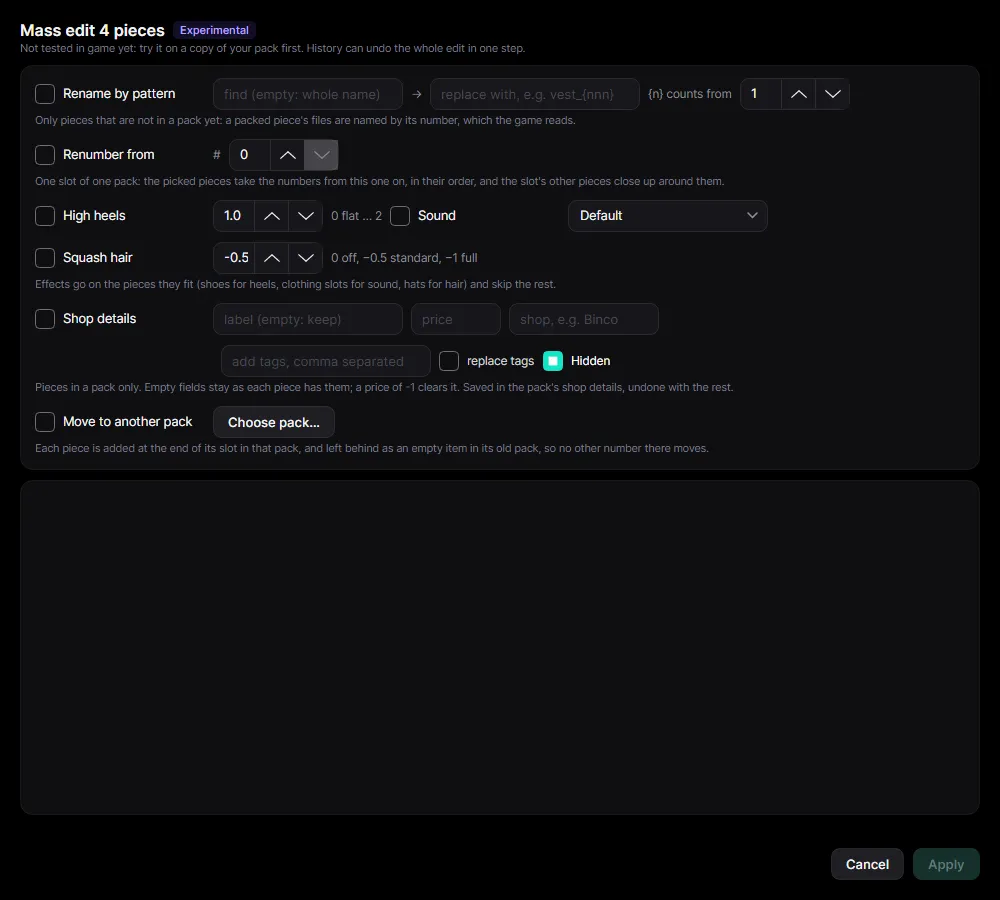
Mass edit changes all the picked pieces as one History step. Fill in only what you want to change:
| Option | What it does |
|---|---|
| Rename by pattern | Find and replace in the names, for example vest_{nnn}. Only for pieces not in a pack yet: a packed piece’s file names are its numbers, which the game reads. |
| Renumber from | For one slot of one pack: the picked pieces take the numbers from this one on, in their order, and the slot’s other pieces close up around them. |
| High heels / Squash hair | Effects go on the pieces they fit (shoes for heels, hats for hair) and skip the rest. Heels go from 0 (flat) to 2; hair squash from 0 (off) through −0.5 (standard) to −1 (full). |
| Shop details | Label, price, shop, tags and Hidden for pieces in a pack. Empty fields stay as they are; a price of -1 clears it. Editing shop details needs a paid plan. |
| Move to another pack | Each piece goes to the end of its slot in that pack, and leaves an empty item in its old pack, so no other number there moves. |
The window lists every piece with its old and new values before you apply. If numbers change, it offers Fix saved outfits… afterwards.
Next: Colours and textures.