

Import from other packs
The Add clothes wizard covers most cases. These two imports from the File menu give you more control: pick the exact number a piece lands on, or merge a whole pack group by group.
Both keep backups (.noxbak) of every .ymt and shop meta they touch, and both can be taken back with File → Undo an import….
One piece: Import piece from another pack
Section titled “One piece: Import piece from another pack”- File → Import piece from another pack…
- Pick the piece’s
.yddin the other pack. Its colour files come along. - In the dialog, choose:
- Into pack: one of your project’s packs.
- Slot: the kind, with how many pieces each pack already has in it, or new in this pack.
- Number: where it lands.
- Click Import.
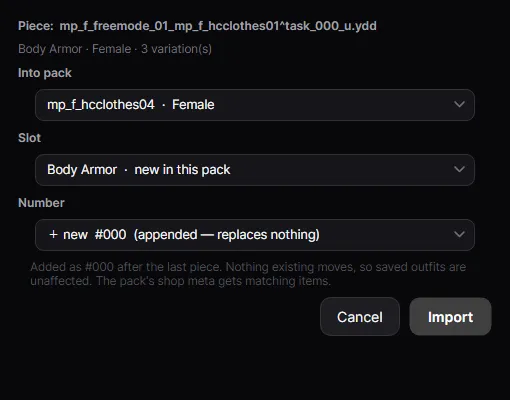
The note under Number tells you what will happen:
- Added as #NNN after the last piece. Nothing existing moves, so saved outfits are unaffected. The default, and the safest.
- Fills a free index — nothing live is replaced.
- This index holds a live piece (N variation(s)). It is archived (reversible) and replaced; anyone wearing #NNN will wear the new piece. Use this to swap a piece in place on purpose.
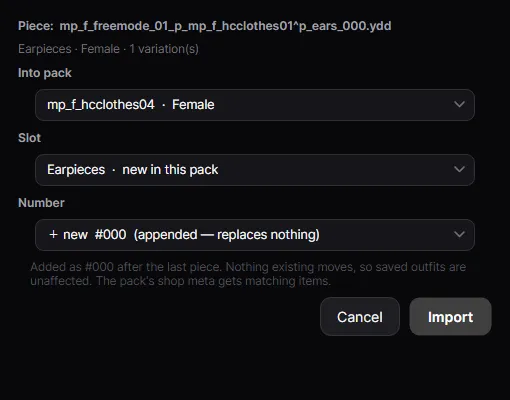
Props (hats, glasses…) can only go into prop slots, and clothes into clothing slots.
Many pieces: Import pieces from another pack (whole pack)
Section titled “Many pieces: Import pieces from another pack (whole pack)”- File → Import pieces from another pack (whole pack)…
- Pick the other pack’s folder.
- Pick the pack to import Into.
- Tick the groups you want. Each line shows where its pieces will land and how full the slot gets, e.g. Male · Legs / Pants — 128 piece(s) new slot, → #000–#127 (128/128). A line in yellow has pieces that don’t fit (— 1 do not fit).
- Click Import.
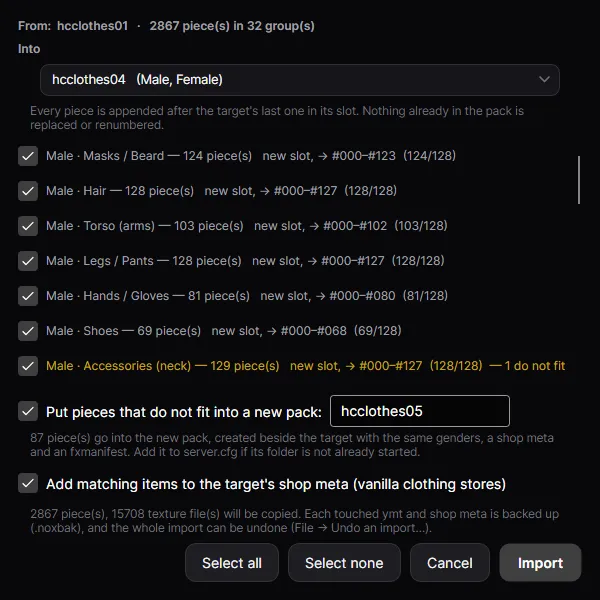
Options:
- Put pieces that do not fit into a new pack: (on by default) makes an overflow pack with the name you type, so nothing is lost. Untick it to leave those pieces out.
- Add matching items to the target’s shop meta (vanilla clothing stores) lists the new pieces in the stores.
The line at the bottom totals what will be copied. Select all and Select none tick or untick every group.
When it finishes, the status bar shows a summary like Imported 2867 of 2867 piece(s). Pieces that failed are listed in the Output panel with the reason. See Import messages.
Undo an import
Section titled “Undo an import”File → Undo an import… lists every import into this project’s packs, newest first.
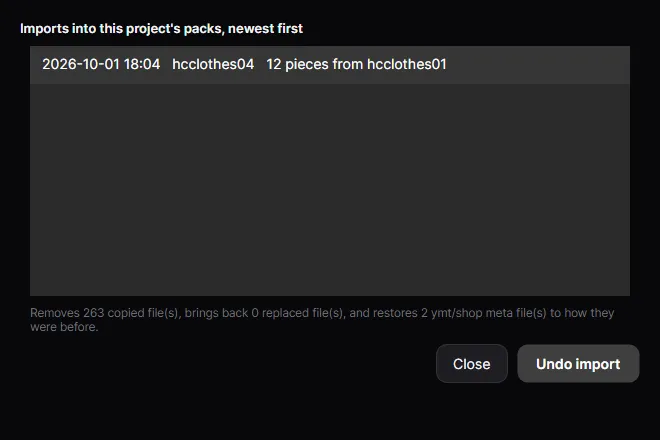
The note says what undoing will do: remove the copied files (and the new pack, if one was made), bring back files that were replaced, and restore the .ymt and shop meta files. Click Undo import.
The record of each import is kept inside the pack, in .noxsware\imports\. FiveM ignores that folder.