
Edit a piece
Open the Wardrobe from the toolbar, then click a piece in the Explorer. The tree goes pack › men/women › kind › piece, in plain words (hover a row for the game code). Kinds with more than 100 pieces are split into ranges.
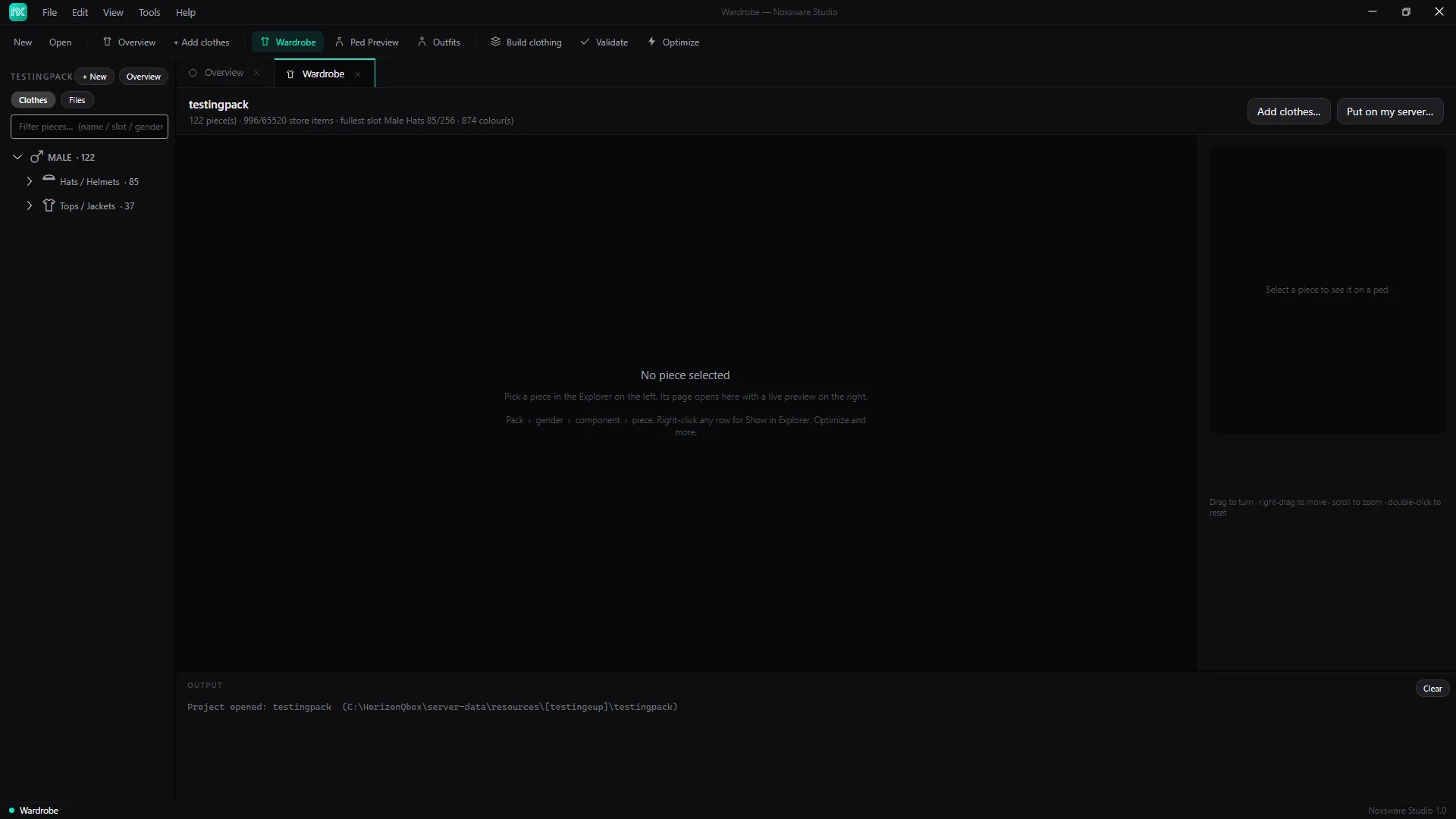
The header shows totals for the project, for example 122 piece(s) · 996/65520 store items · fullest slot Male p_head 85/256 · 874 colour(s). Two buttons sit next to it: Add clothes… and Put on my server….
The piece page
Section titled “The piece page”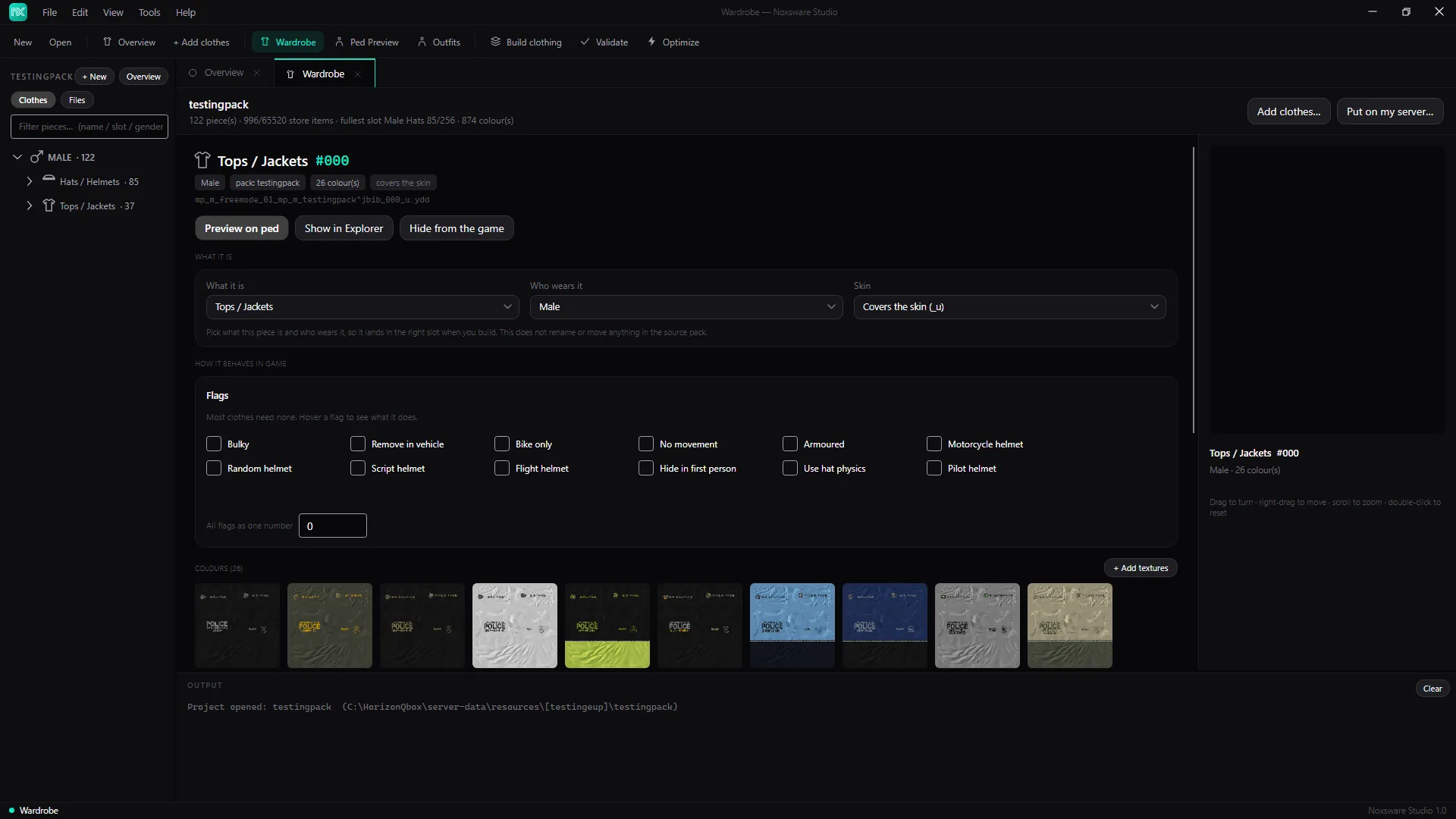
On the right is a live 3D preview of the piece on a ped: drag to turn, right-drag to move, scroll to zoom, double-click to reset.
Header
Section titled “Header”The kind, its number (e.g. Tops / Jackets #000; numbers count from zero), and chips for men/women, the pack, the number of colours, and whether it covers or shows skin. Below is the file name; hover it for the full path.
Actions
Section titled “Actions”- Preview on ped opens Ped Preview with this piece on, plus a picker for its colours.
- Show in Explorer opens the file’s folder in Windows.
- Hide from the game / Bring back into the game takes the piece out of the game without renumbering anything. See Hide a piece.
Problems with the piece appear in a card under the buttons. A line starting with ✕ is an error, ⚠ is a warning.
What it is
Section titled “What it is”| Field | |
|---|---|
| What it is | The kind, e.g. Tops / Jackets. |
| Who wears it | Male or Female. |
| Skin | Covers the skin (_u) or Shows skin (_r). Not used for props. |
These decide which slot the piece lands in when you build. They don’t rename or move anything in the source pack.
How it behaves in game
Section titled “How it behaves in game”High heels (shoes only). Slider from 0 to 2, with presets Flat 0, Low 0.5, Medium 1, High 1.5. The preview ped lifts as you drag. On male shoes only the lift applies, because the male ped has no high-heel walk.
Squash hair (hats only). Slider from −1 to 0, with presets Off 0, Standard −0.5, Full −1. It squashes the hair under the hat. It only shows in game, because the preview ped has no hair.
Flags. Most clothes need none. Hover a flag in the app to see what it does.
| Flag | Value |
|---|---|
| Bulky | 1 |
| Remove in vehicle | 32 |
| Bike only | 64 |
| No movement | 128 |
| Armoured | 256 |
| Motorcycle helmet | 512 |
| Random helmet | 1024 |
| Script helmet | 2048 |
| Flight helmet | 4096 |
| Hide in first person | 8192 |
| Use hat physics | 16384 |
| Pilot helmet | 32768 |
All flags as one number shows the same as a single number, if you know the value you want. Unknown bits show as Other flag (N). Flags are kept in the project and written into the shop meta when you build. To set flags on many pieces at once, use Bulk flags.
Colours
Section titled “Colours”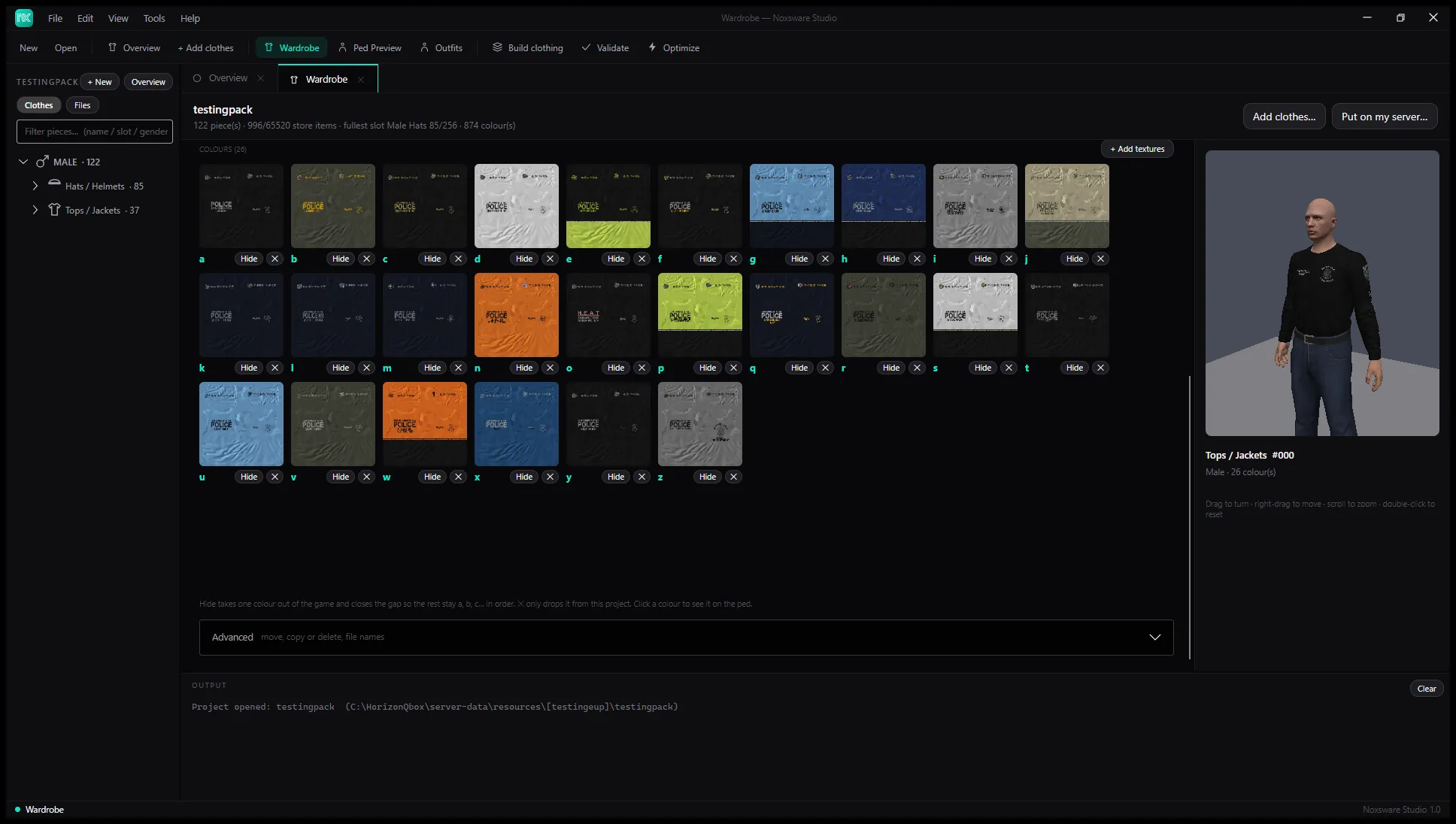
Each colour has its letter, a thumbnail, Hide and ✕. Click a thumbnail to put that colour on the preview ped.
- Hide takes one colour out of the game and closes the gap, so the rest stay a, b, c… in order. Bring back reverses it.
- ✕ only drops the colour from this project. The file stays on disk.
- + Add textures adds more colour files (
.ytd) to the piece. A piece can have 26 at most.
A piece with no colours shows No colours yet: the piece shows up without a texture. Add its .ytd colour files.
Advanced
Section titled “Advanced”Click Advanced (move, copy or delete, file names):
- Move to slot…, Duplicate to slot…, Delete & renumber…, Remove from project. See Move, copy, hide and delete.
- Files: the model, its alternates and cloth physics files, and the names the piece gets in a built resource, e.g.
jbib_012_u.yddandjbib_diff_012_a_uni.ytd.
Keyboard
Section titled “Keyboard”In the Explorer tree, arrow keys move between pieces and the page follows. Left and Right fold and unfold groups. Ctrl+Z / Ctrl+Y undo and redo piece edits.