

Git
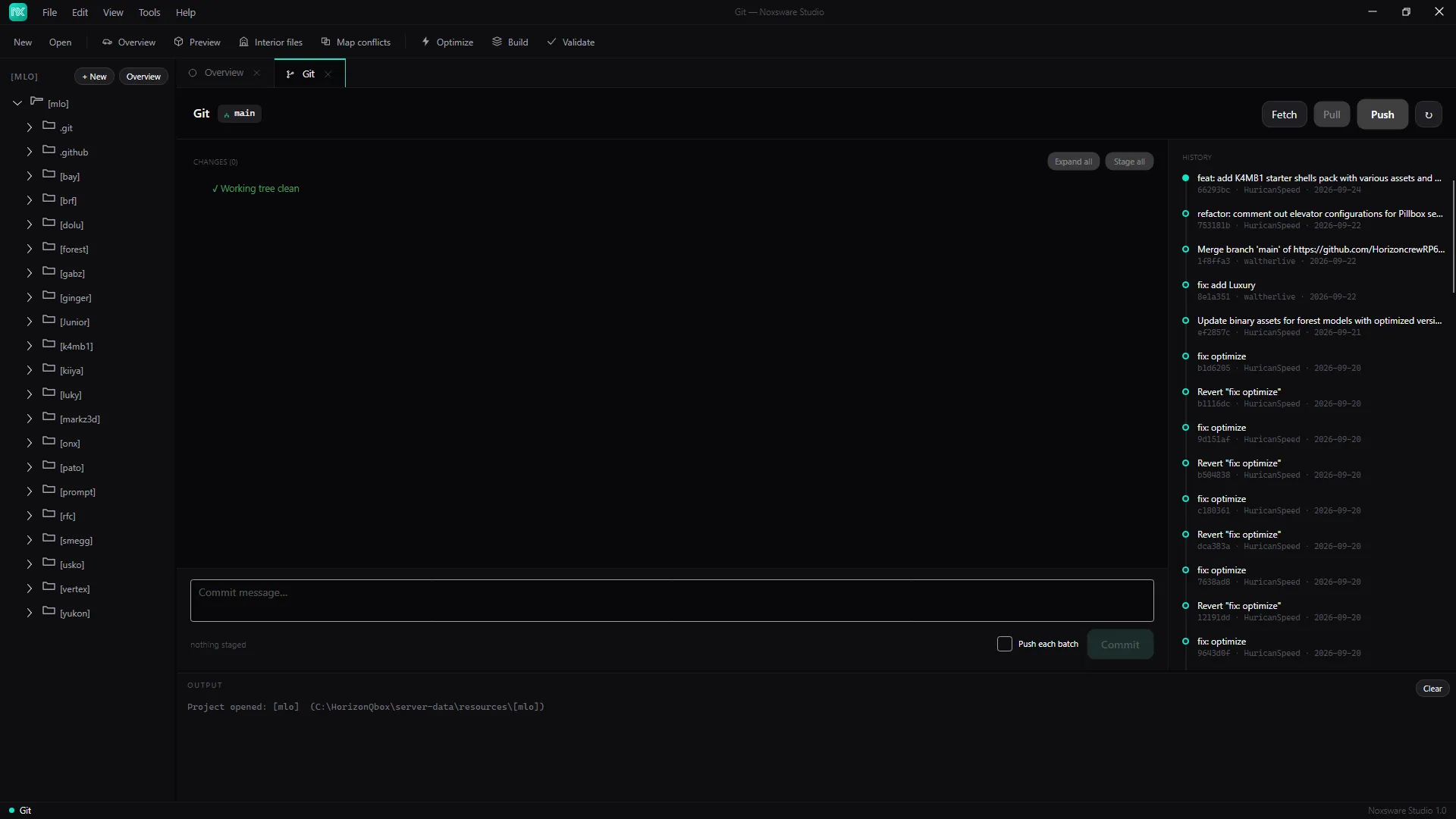
The Git page tracks your project’s source folder with Git, so you can always go back to an earlier state. It’s useful before big imports, in-place optimizing or applying versions.
What you need
Section titled “What you need”- An open project.
- Git installed. If it isn’t, the page says Git not found — Install Git from git-scm.com, then reopen this tab.
- If the folder isn’t a repository yet, click Initialize repository.
Commit
Section titled “Commit”- Changes lists every changed file in a tree:
+new,Aadded,Mmodified,Ddeleted,Rrenamed. Tick files or folders to stage them, or click Stage all. - Type a Commit message…
- Click Commit.
Huge first commits (game assets add up) are split into batches of up to 10,000 files or 2 GB. Tick Push each batch to push after each, so no single push is too big for your Git host.
History on the right lists your commits.
Sync with a remote
Section titled “Sync with a remote”The header shows the branch and how many commits you are ahead (↑) or behind (↓). If the repository has a remote, Fetch, Pull and Push appear. The first push sets the upstream branch.
The page has no button to add a remote. Add one once from a terminal:
git remote add origin https://github.com/you/your-pack.git